Creating & Editing
Creating a recipe and editing a recipe both happen using the same interface and generally act very similarly to each other.
Video Guide
This same video also appears on the 📖 my recipes and 📖 recipe details pages, since it covers recipes as a whole. Think of it as a visual overview to help you get oriented. It does not cover everything, so read on down this page for the details specific to creating and editing recipes.
Creating a new recipe
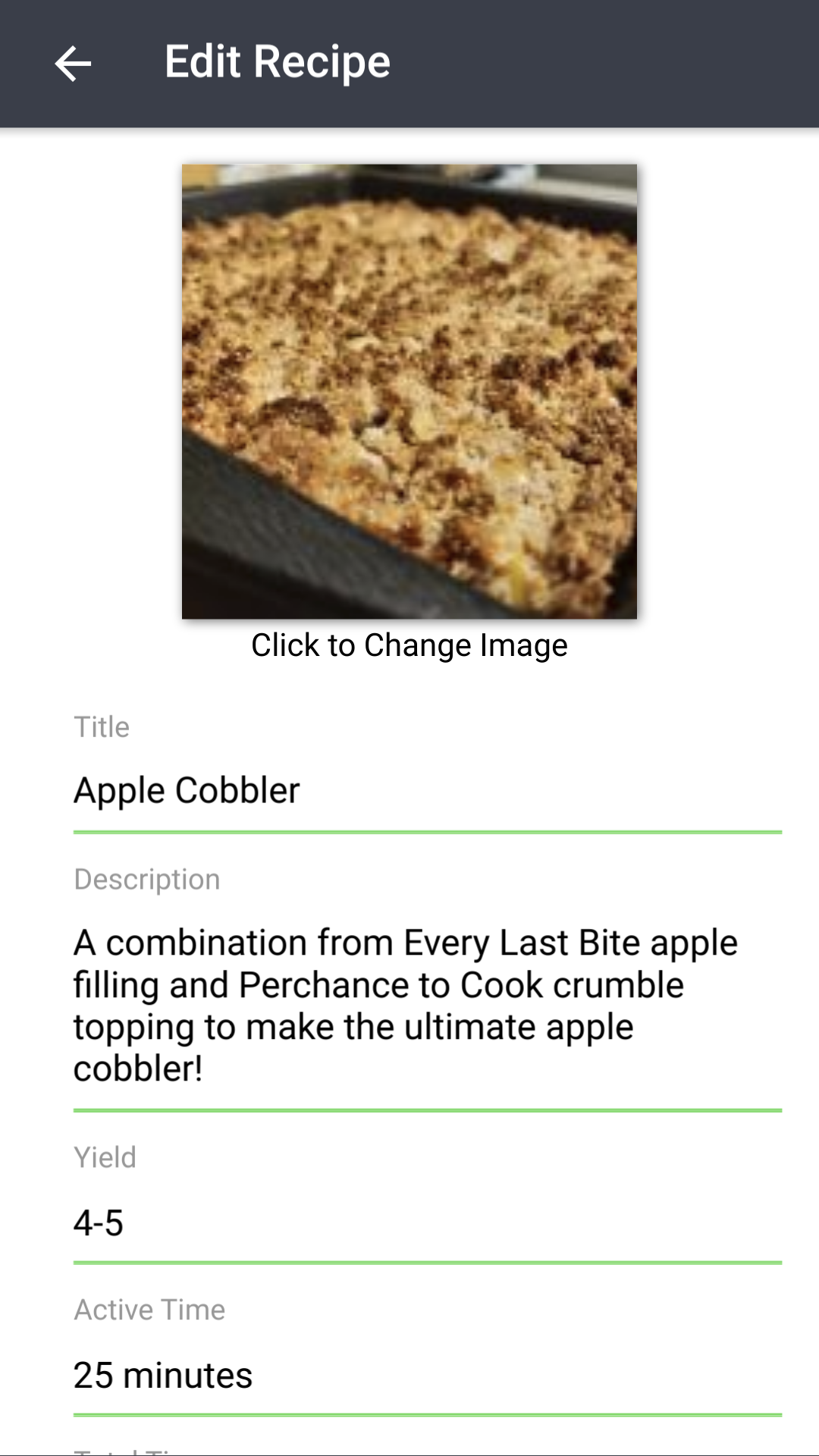
The create recipe page can be reached from the 📖 my recipes page by clicking the blue + button in the bottom right corner, as well as via the sidemenu.
Fill in the corresponding fields as you wish - only the title is required. After you're done, click the save button and it will be added to your collection.
To add an image to your recipe, click the image holder at the top. Your browser will prompt you to select a file. If the 📖 multiple images per recipe feature is enabled, you can add up to 10 images per recipe. Images will be automatically resized to the proper dimensions. The 📖 high resolution images feature will keep your recipe in high resolution while doing so.
For special formatting in the ingredients, instructions, or notes fields please see the 📖 formatting section below.
You can add or remove labels from the recipe on this page. See 📖 Labels below. The documentation for creating labels is 📖 here.
Autofill
Rather than typing a recipe out by hand, you can have RecipeSage fill in the fields for you from an existing source. On the 📖 create new recipe page (not available while editing an existing recipe), click the Autofill Recipe From... button to choose a source.
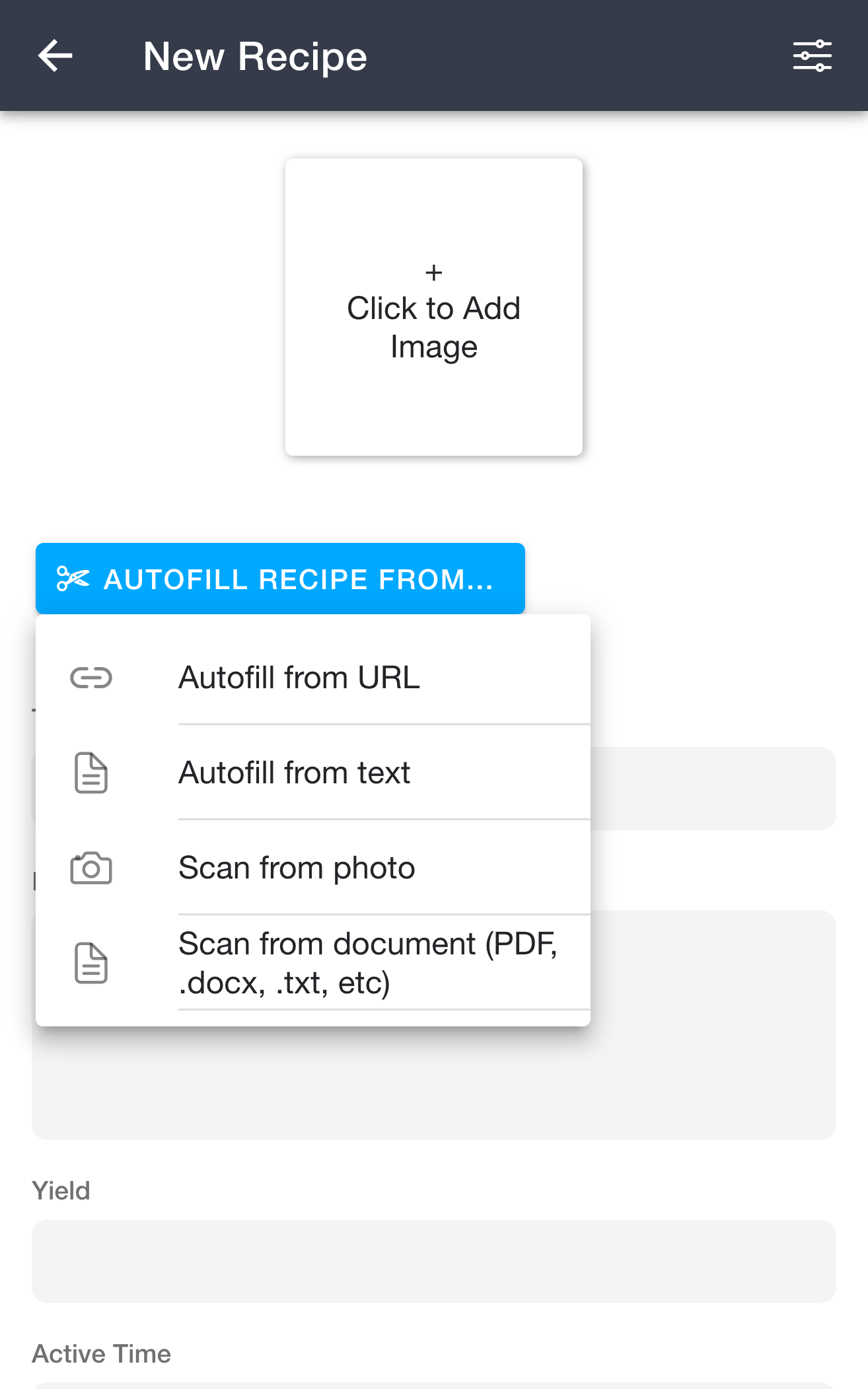
The available options are covered below. Each autofill dialogue also has an Attempt to grab nutrition information checkbox. See 📖 Grabbing Nutrition During Clipping.
Autofill from URL
Importing by URL makes it easy to import almost any site into your recipe edit flow automatically.
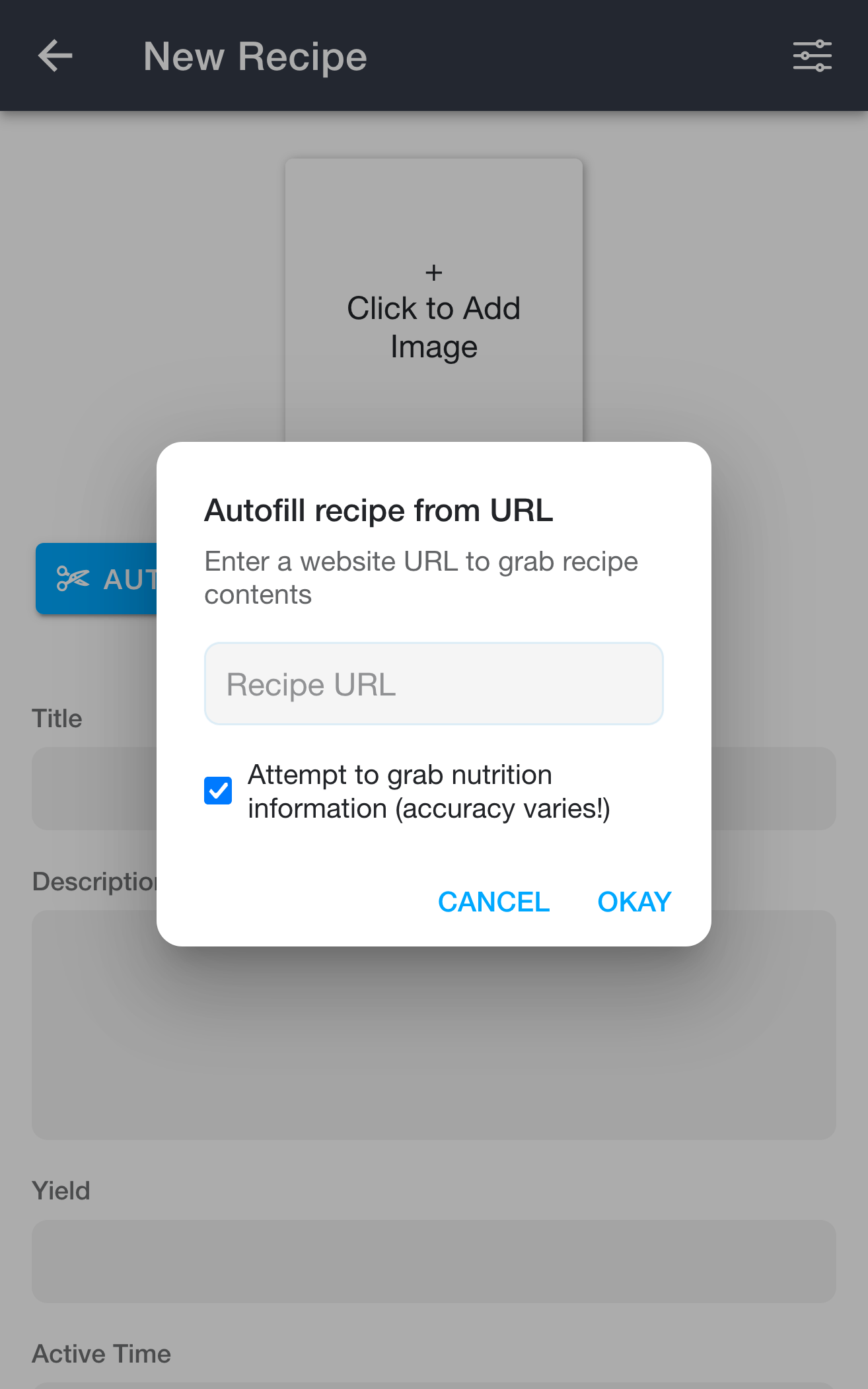
To import a recipe from URL, open the 📖 create new recipe page (not available while editing an existing recipe), and click the "Autofill Recipe From..." button. Then, click the "Autofill from URL" option, paste in a URL to a recipe, and click "Okay".
Known limitations:
- The target URL must contain only a single recipe. If it contains more than one, you'll get a random one of the recipes on the page or potentially a combination of multiple.
- Most sites will work, but some sites block the importer purposefully. Because of this, some sites will not work. You can get around sites with this limitation using the 📖 browser extension.
Autofill from Text
Importing from text makes it easy to import from a copied block of text. The text doesn't have to have any particular format, as long as it contains a recipe at some point. The RecipeSage assistant will take care of formatting it into the appropriate fields.
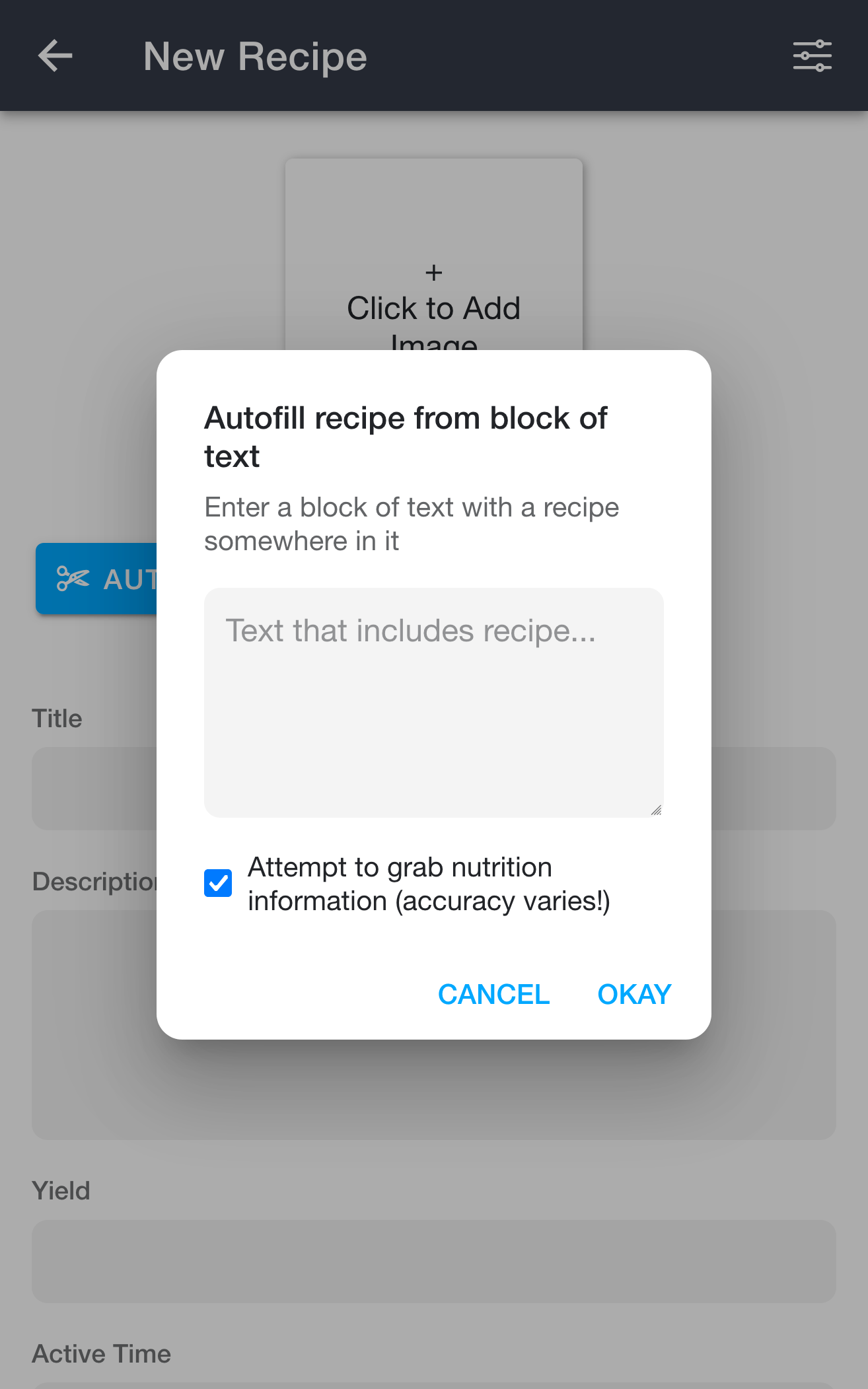
To autofill a recipe from a block of text, open the 📖 create new recipe page (not available while editing an existing recipe), and click the "Autofill Recipe From..." button. Then, click the "Autofill from text" option, paste in a block of text containing a recipe, and click "Okay".
Known limitations:
- You can only import a single recipe at a time.
Scan from Photo
You can take a photo of a recipe either in print form, or handwritten. RecipeSage will recognize any text it can see in the photo, and try to fill in the associated fields on your recipe.
To use this, open the 📖 new recipe page (not available while editing an existing recipe) and click the "Autofill Recipe From..." button, then the "Scan from photo" option. On mobile devices, you'll be prompted to choose whether to take a photo, or whether to select an existing one. On desktop, you'll just see a file dialogue where you can select an image file.
If taking a photo with your camera, it's recommended to have good lighting, and have the text in the photo be as square as possible. Screenshots also work great.
This feature is also particularly useful for importing from other apps on your phone, such as Facebook or Instagram. You can take a screenshot of the recipe as seen in the other app, and use this feature to scan the photo into RecipeSage.
Known limitations:
- Good lighting is really important to get a good quality output
- This is intended to speed up the process of entering a recipe, but will never be flawless. Please check the result, since the result can often contain inaccuracies.
- You can only scan a single recipe at a time.
Scan from document
Importing from a document makes it easy to import recipes from almost any arbitrary source. The document doesn't have to have any particular format, as long as it contains a recipe. The RecipeSage assistant will take care of formatting it into the appropriate fields.
Supported document types are PDF, DOCX, RTF, ODT, Markdown, HTML, OrgMode, and plain text.
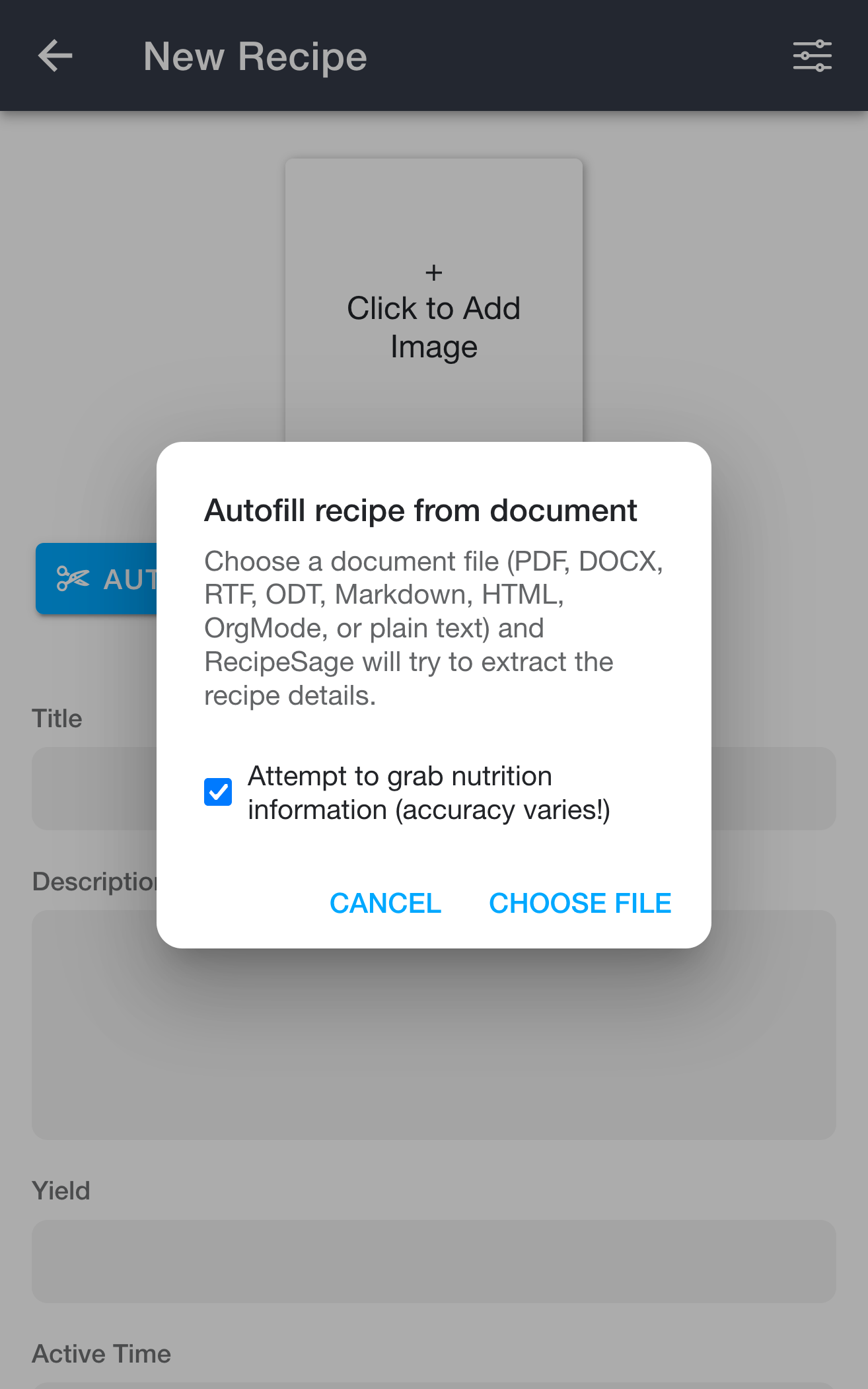
To autofill a recipe from a document, open the 📖 create new recipe page (not available while editing an existing recipe), and click the "Autofill Recipe From..." button. Then, click the "Scan from document" option and click "Choose File" to select a file.
Known limitations:
- Only the first two pages of a PDF will be scanned for a recipe
- You can only scan a single recipe at a time.
Editing a recipe
The edit recipe page can be reached from the 📖 recipe details page by clicking the edit button at the bottom of the page, or by clicking the edit button in the top right options menu.
The options and interface are the same here as described in the 📖 creating a new recipe section.
Formatting
The ingredients, instructions, and notes fields support special syntax for organizing and formatting your recipes.
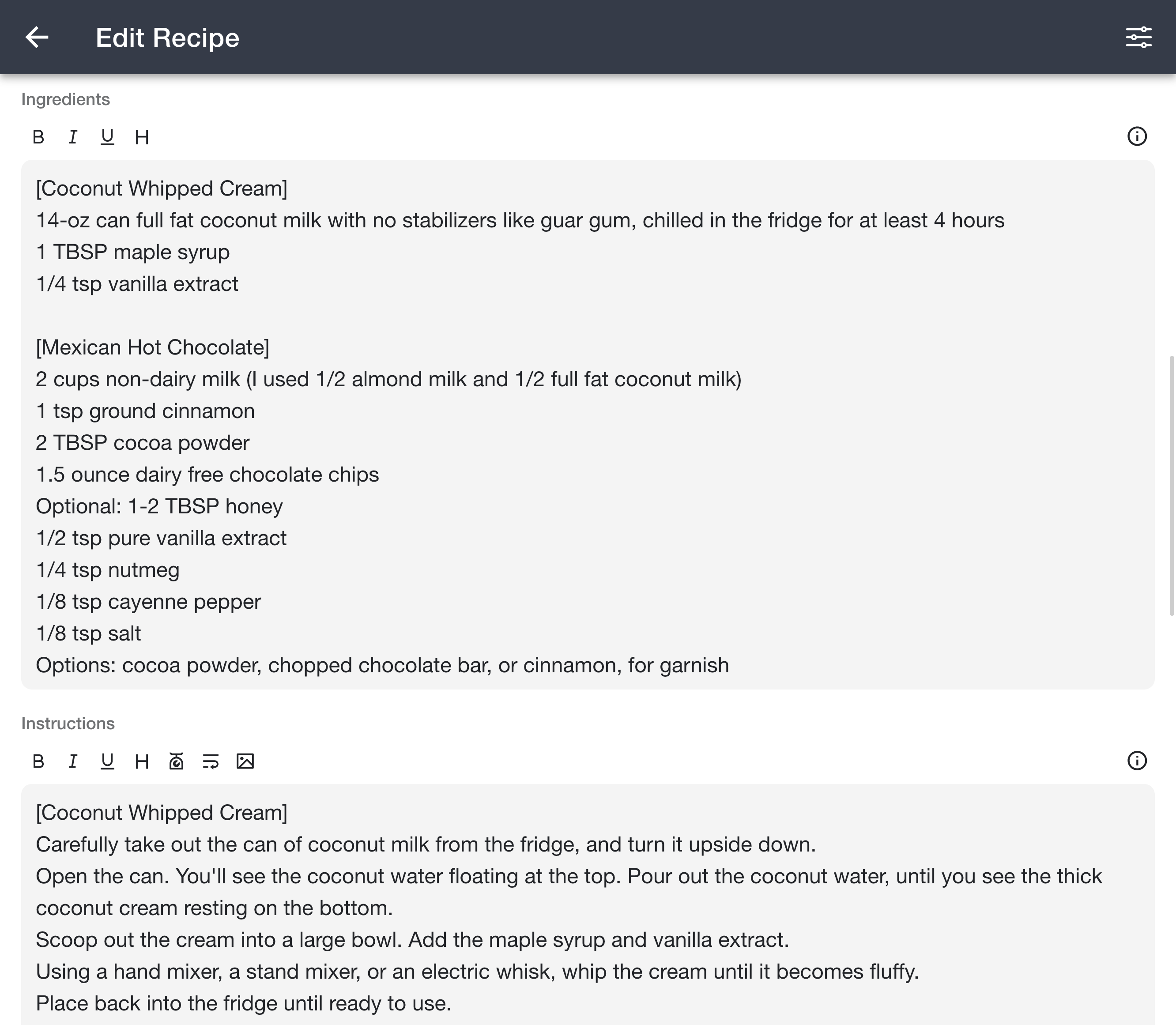
Each of these fields has a small toolbar directly beneath it with buttons that insert the formatting syntax for you, so you don't have to remember it. The available buttons depend on the field (for example, tables are only offered under the notes field). If you have text selected when you press a button, the formatting is wrapped around your selection; otherwise a placeholder is inserted for you to type over. The information icon at the end of each toolbar links back to this section.
Ingredients
Ingredients are divided by linebreaks, so put one per line. Ingredient measurements will be automatically parsed for scaling. As a general rule, use the format 1 1/2 cup. For a range, use the format 1 to 2 cups. This will help the scaling feature recognize your quantities as best as possible.
The ingredients section also supports 📖 Inline Formatting and 📖 Section Headers.
Instructions
Instructions are divided by linebreaks, so put each step on a different line.
To make numbers inside the instructions scale along with the recipe scale setting, wrap the number in curly braces:
Add {500} ml milk, and whisk in {2} eggs.
Add {1 1/2} packet of vanilla sugar.
You can also include a unit inside the braces. When a unit is provided, the value is treated as a measurement which lets RecipeSage convert it between metric and imperial when you change units in the scale dialogue:
Pour in {236ml} of water.
Add {2 cups} of flour, then stir in {1-2 tablespoons} of oil.
To add multi-line steps without causing a new step number, end the previous line with a backslash:
Instruction 1\
Additional details for instruction 1
Instruction 2
The instructions section also supports 📖 Inline Formatting and 📖 Section Headers.
Notes
Any URL in the notes field will be rendered as a clickable link. No additional formatting is needed.
You can also add tables to the notes field using markdown table syntax. Each row must start and end with a | pipe character, and a separator row of dashes is required after the header row.
| Header 1 | Header 2 | Header 3 |
| --- | --- | --- |
| Row 1 Col 1 | Row 1 Col 2 | Row 1 Col 3 |
| Row 2 Col 1 | Row 2 Col 2 | Row 2 Col 3 |
You can control column alignment using colons in the separator row: :--- for left (default), :---: for center, and ---: for right alignment. Tables support inline formatting within cells as well.
The notes field also supports the same curly-brace scaling syntax as instructions. Wrap a number (or a number with a unit) in braces so it scales with the recipe scale setting:
Use {2 cups} of broth when doubling.
Rest for {30 minutes} before serving.
The notes section also supports 📖 Inline Formatting and 📖 Section Headers.
Inline formatting
You can use markdown-style syntax to apply bold, italic, and underline formatting within the ingredients, instructions, and notes fields:
**bold text**
*italic text*
__underlined text__
***bold and italic text***
Section headers
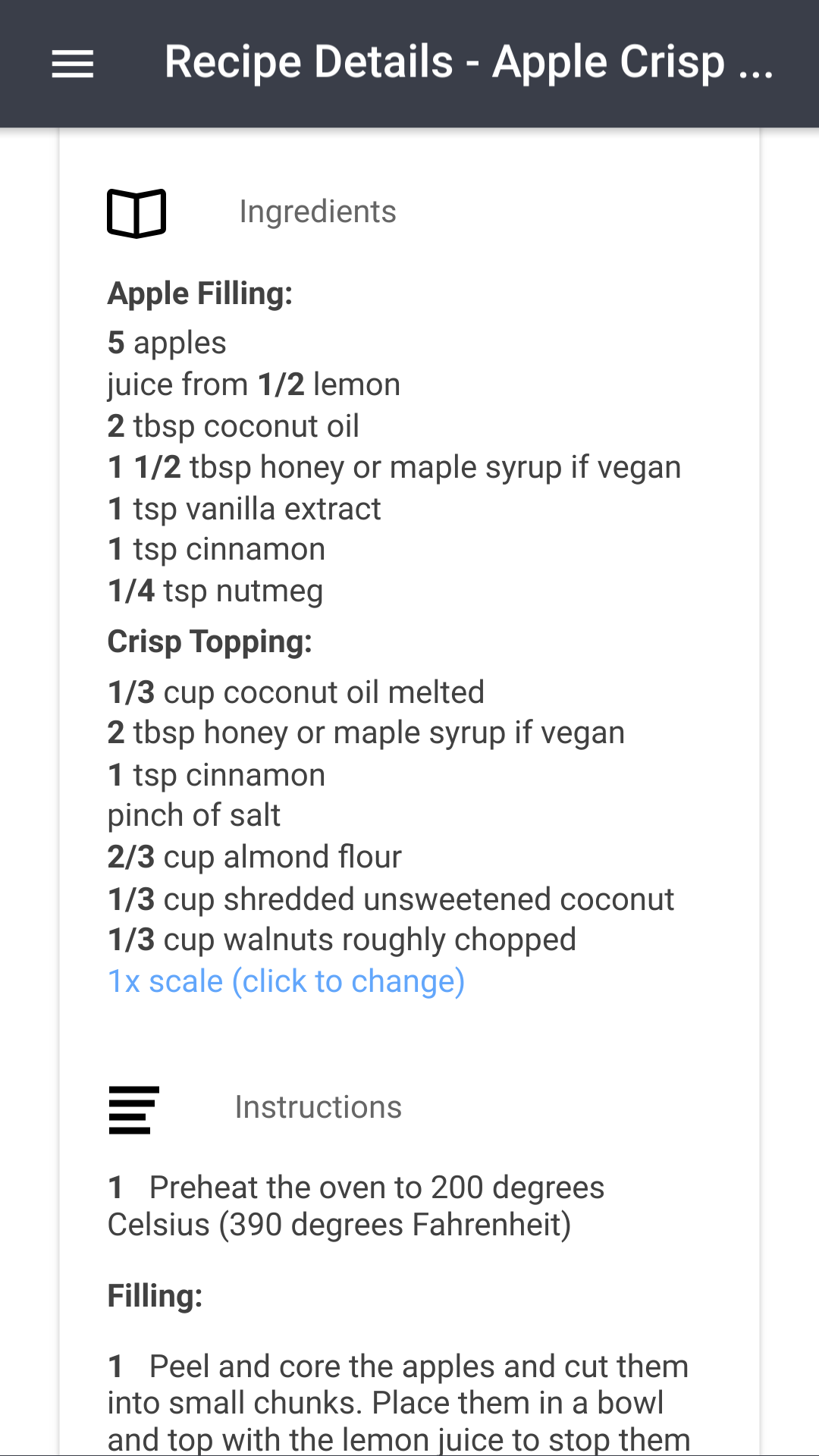
To add a header, wrap the line in brackets:
[The dough:]
1/2 cup water
[The sauce:]
1/8 cup sugar
In the instructions section, a section header will reset the numbering of the steps that come after.
Referencing images in text
Within the instructions and notes fields, you can reference images you have attached to the recipe. N is the 1-indexed position of the image (the first uploaded image is ![image:1], the second is ![image:2], and so on).
Brown the onions until they look like this: ![image:1]
Add the stock and stir. ![image:2|After adding stock]
You can optionally add a caption after a pipe (|). The caption is shown under the image and also used as the alt text.
You can also choose a size by adding :small, :medium, :large, or :xlarge after the image number. medium is the default and can be omitted.
![image:1:small]
![image:2:large|Finished dish]
![image:3:xlarge|Hero shot]
This syntax is supported in the Instructions and Notes fields only.
Labels
Labels are added to and removed from a recipe on the edit page.
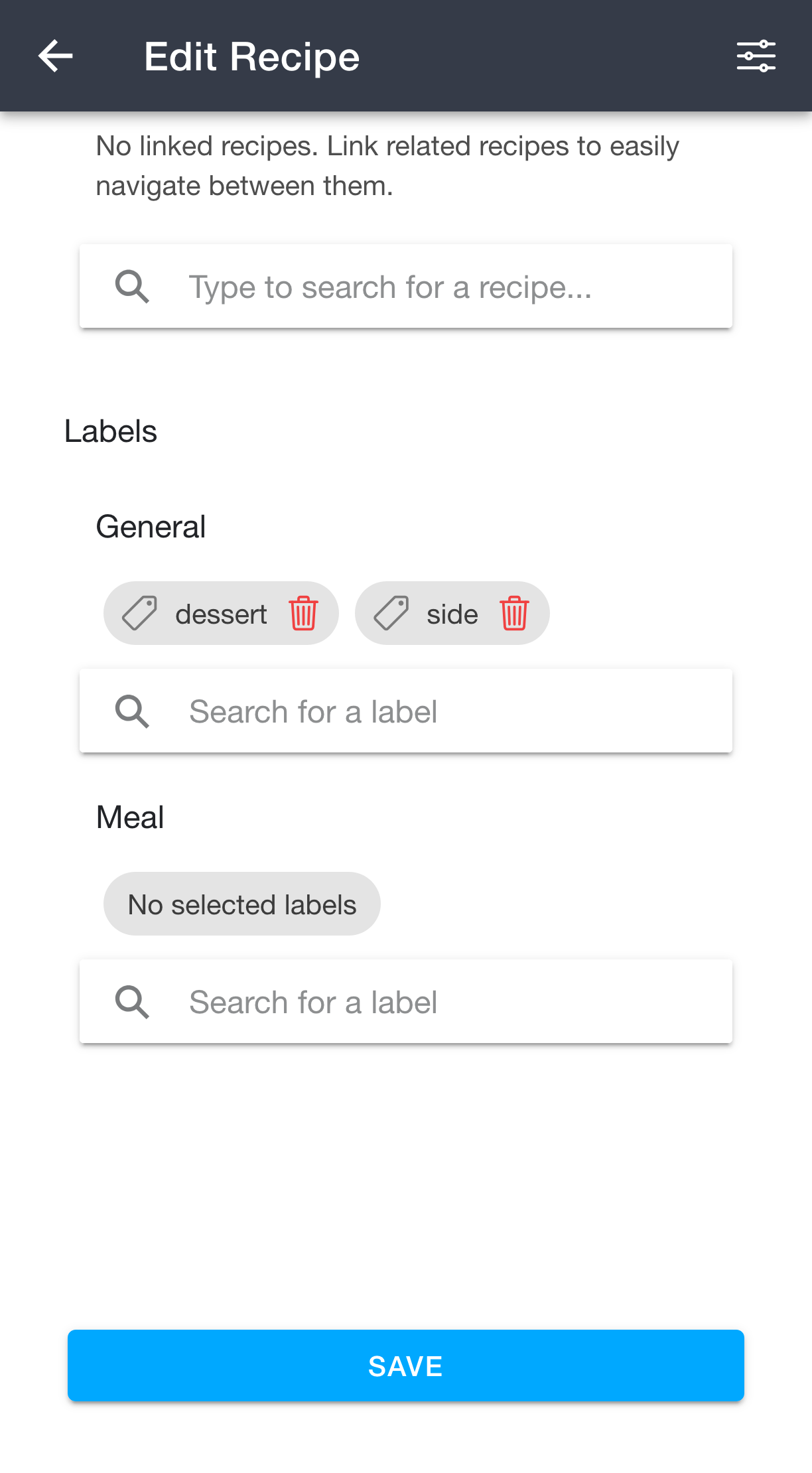
Under the Labels heading, type into a "Search for a label" field to find an existing label or create a new one, then select it to attach it to the recipe. To remove a label, tap the red trash can icon next to it.
If you've set up 📖 label categories, each category gets its own labelled group with its own search field, so you can keep, for example, "Meal" labels separate from "General" ones. Uncategorized labels appear under the "General" group.
Once saved, your labels are shown on the 📖 recipe details page and can be used to 📖 filter your recipes.
Rating
Recipes can be rated on a 1-5 star scale. You can set the rating from the Rating field on the edit page, or from the stars shown in the top of the recipe details page. Ratings can be used as a filter on the my recipes page.
Last Made
The Last Made field lets you record the most recent date you cooked a recipe. You can either pick a date directly, or leave the field set to "Never" and click the button to set it to today. You can sort your recipes by "last made" on the 📖 my recipes page, which is handy for rotating through your collection.
You can also update the last made date directly from the recipe details page without opening the editor.
Linked Recipes
The Linked Recipes section lets you explicitly link another recipe to this one, for example a pasta dish to its sauce, or a dessert to its frosting. Links are bidirectional: a link added from one recipe is visible on both.
Linked recipes are shown together near the bottom of the recipe details page, and are included when printing or viewing the recipe details, making them easy to open in one click.
In addition to the recipes you explicitly link, the details page will also show a "Similar recipes in your collection" section for recipes that have similar content to the one you're viewing. This section is automatic; you don't need to configure it.
Nutrition
The recipe edit page has a collapsible Nutrition section for per-serving nutritional information, including calories, macros (fat, carbs, protein), and vitamins/minerals like sodium, cholesterol, vitamin D, calcium, iron, and potassium. Total fat is broken out into saturated, trans, polyunsaturated, and monounsaturated fat. A free-form Serving Size field (for example, 1 cup (240g)) anchors the per-serving values, and a free-form Other Nutrition Details field captures anything not covered by the dedicated fields (for example caffeine, magnesium, vitamin A/C, omega-3, sugar alcohols, etc).
Numeric nutrition fields accept numbers and decimals only. The label next to each field tells you the expected unit, for example g, mg, or mcg. Leaving a field blank simply hides it from the recipe details page.
By default, the Nutrition section starts collapsed when editing a recipe. You can set it to expand by default via Side Menu -> Settings -> Auto-Expand Nutritional Information When Editing Recipes.
Autofilling Nutrition from Text
Rather than filling in every 📖 nutrition field manually, you can paste a block of nutrition text (for example, copied from a nutrition label or a website) and let RecipeSage extract the values.
- Open the recipe edit page and expand the Nutrition section
- Click "Autofill nutrition from text"
- Paste the nutrition text and click "Autofill"
The AI will do its best to extract each field from the text. Please double-check the results for accuracy before saving.
Clearing All Nutrition Fields
The 📖 Nutrition section on the recipe edit page has a "Clear all nutrition" button that will reset every nutrition field at once after confirmation.
Grabbing Nutrition During Clipping
When 📖 autofilling a recipe from a URL, you can check the "Attempt to grab nutrition information" option to also pull nutrition data from the source page into the 📖 nutrition fields. Accuracy varies depending on how the source page is structured, so please validate the result before saving.
Limits
There are no currently enforced recipe limits, however RecipeSage reserves the right to take action against abuse. There are many users with more than 40,000 recipes in their account, which equates to 109 years of cooking if you cook one recipe a day. In other words, you should not be concerned with any recipe count limit.
Multiple images per recipe are supported, but do require active "contributor rewards". This is due to images being very costly to host, and the app being free. Contributors can add up to 10 images per recipe.