Creating/Editing Meal Plans and Items
Video Guide
This same video also appears on the 📖 usage and options and 📖 sharing pages, since it covers meal plans as a whole. Think of it as a visual overview to help you get oriented. It does not cover everything, so read on down this page for the details specific to creating and editing meal plans and items.
Creating a Meal Plan
Your existing meal plans are listed on the 📱 Meal Plans page. Click any meal plan to open it, or use the + button in the bottom right corner to create a new one.
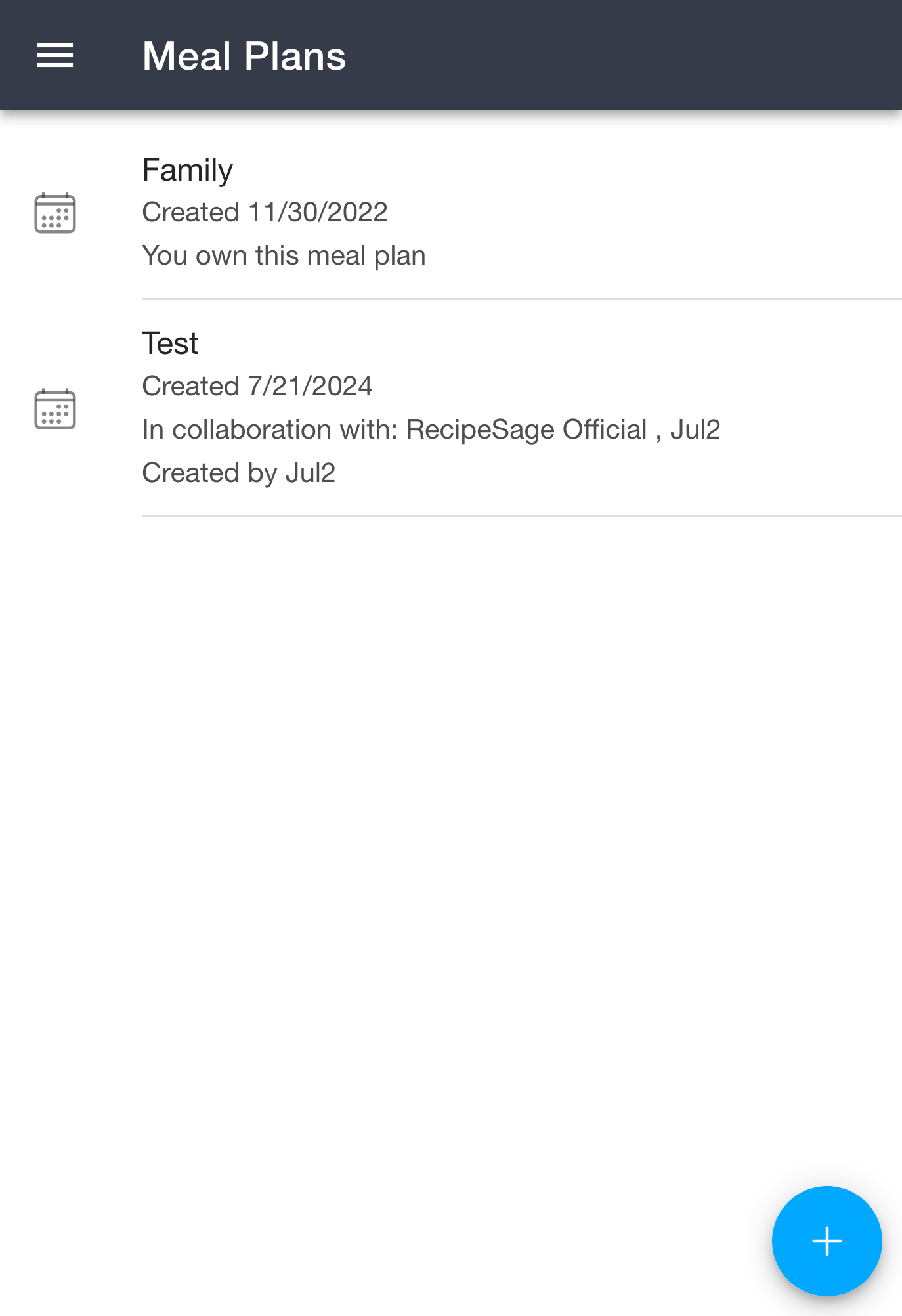
To create a meal plan:
- Open the 📱 Meal Plans page
- Click the + button in the bottom right corner
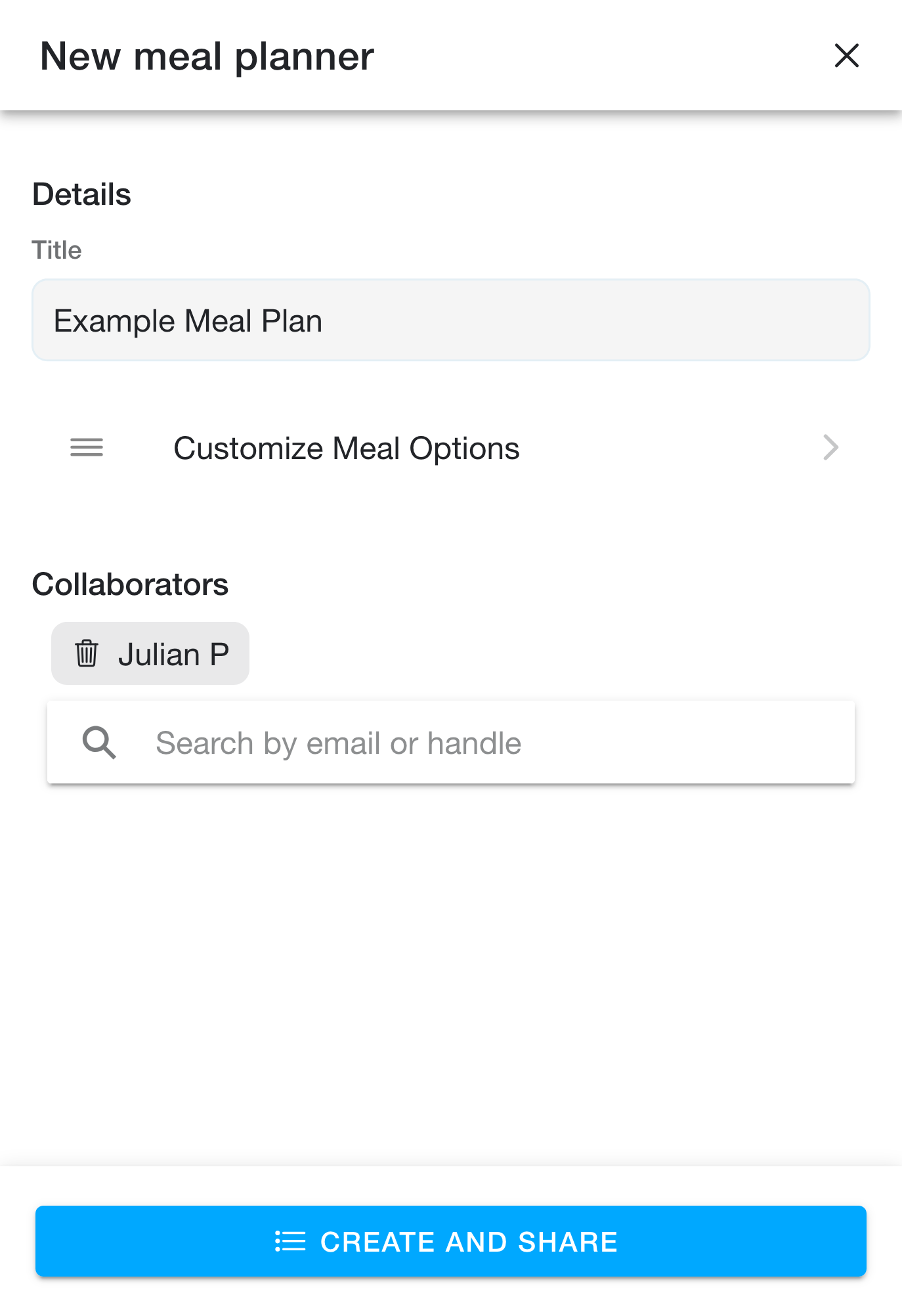
- Add a title, and optionally set up 📖 custom meal options and any collaborators
- Click "create" (this button reads "create and share" once you have added collaborators)
Adding Items (text) to a Meal Plan
To add items directly to a meal plan:
- Open the 📱 Meal Plans page
- Open the meal plan you'd like to add items to
- Click the + button in the bottom right corner
- Click the "manual entry" tab unless you want to 📖 add a recipe
- Enter the title, date, and select a meal
- Optionally add notes
- Click "add to meal plan"
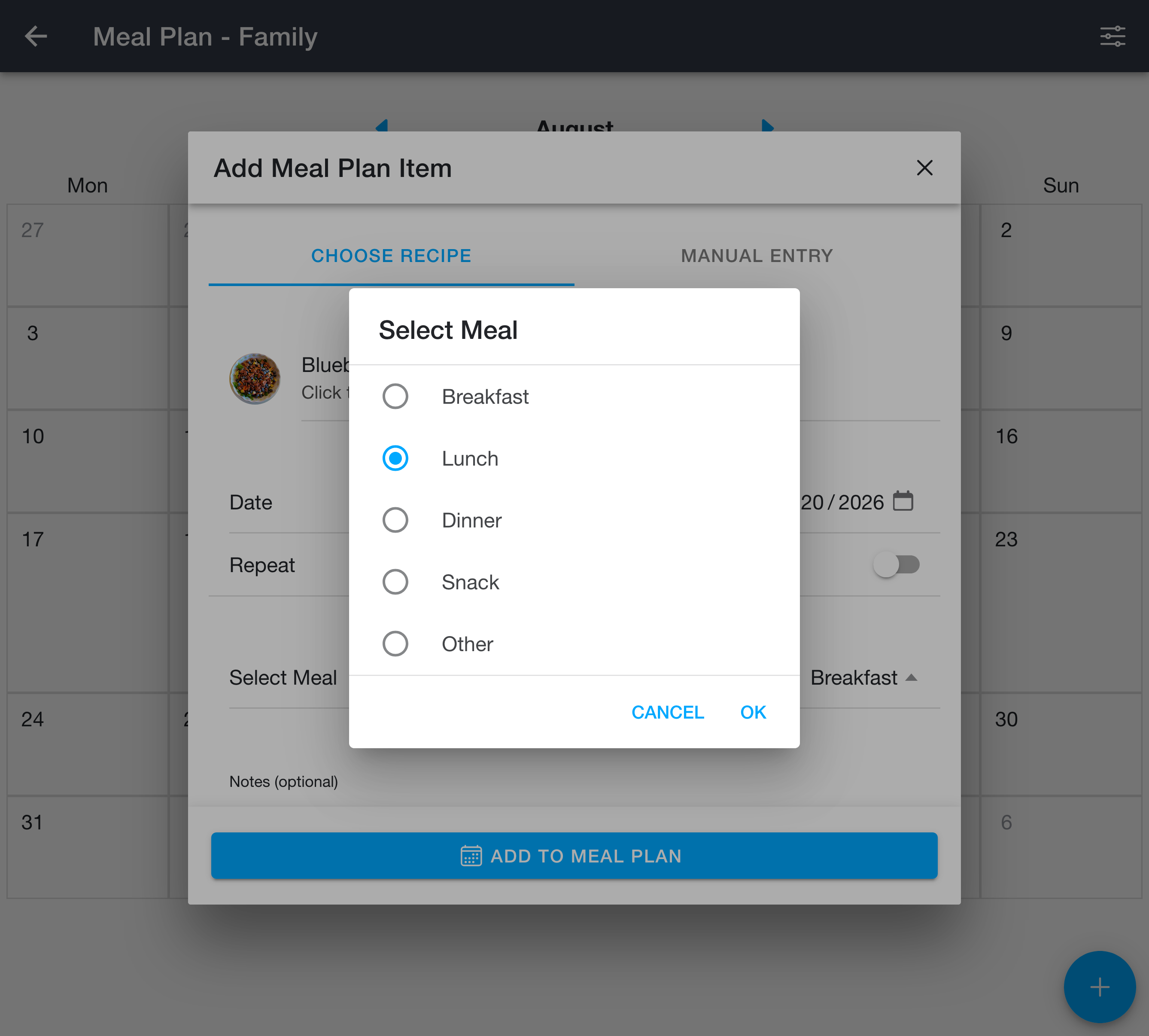
When you tap "select meal", you can choose from Breakfast, Lunch, Dinner, Snack, Other, or any 📖 custom meals you have set up.
Adding a Recipe to a Meal Plan
To add a recipe to a meal plan you have two options - either via the recipe details page or via the meal plan details page. Both are just as effective, and are merely for convenience depending on what you're doing at the moment. Feel free to go through either flow depending on what's easier for you.
Via the Meal Plan Page
- Open the 📱 Meal Plans page
- Open the meal plan you'd like to add the recipe to
- Click the + button in the bottom right corner
- Leave the "choose recipe" tab selected
- Search for the recipe you'd like to add via the search box
- Click the recipe you'd like to add from the results list
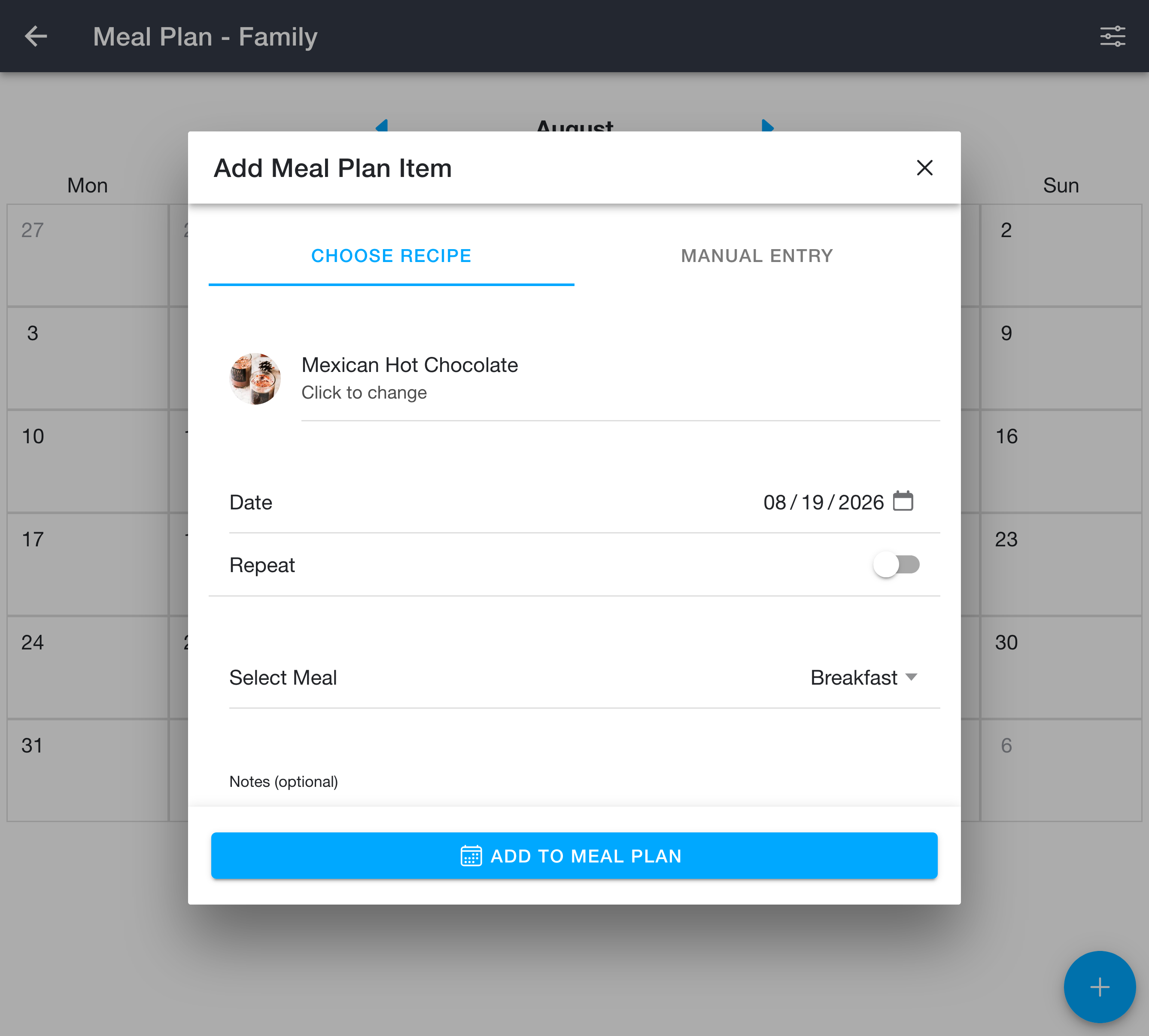
- Enter the date and select the meal this will be scheduled for
- Optionally add notes
- Click "add to meal plan"
Via the Recipe Details Page
- Open the 📱 My Recipes page
- Open the recipe you'd like to add
- Open the options menu in the top right corner
- Click "add to meal plan"
- Select the meal plan you'd like to add the recipe to
- Select the date and select the meal this will be scheduled for
- Optionally add notes
- Click "add to meal plan"
Notes
Each meal plan item can have optional notes. Notes are useful for adding extra context to an item, such as side dishes, cooking reminders, or serving instructions.
To add or edit notes:
- Click the + button to create a new item, or click an existing item and select "edit this item"
- Enter your notes in the "Notes" field at the bottom of the form
- Save the item
Notes support the same header syntax as recipe notes: wrap a line in square brackets (e.g. [Sides]) to make it a bold header.
Notes are displayed in the item details view when you click on an item. They are also included when sharing your meal plan via iCal.
Editing an Item
To edit an item, simply click the item and select "edit this item". You can change anything about the item, including the date, meal, notes, or recipe/title.
Recurring Items
When adding a new item via the + button on the meal plan page, you can schedule it to repeat. Toggle on "Repeat" at the bottom of the form to expand the recurrence options.
You can configure:
- Frequency: Daily, Weekly, or Monthly.
- Every X: The interval between occurrences (e.g., every 2 weeks).
- (Weekly) Repeat on: One or more weekdays. The day matching your selected date is always included.
- (Monthly) Repeat pattern: Either the same day of the month (e.g., the 17th of every month) or the same weekday-of-month (e.g., the third Saturday of every month). The choices are based on the date you've picked.
- Ends: Choose "On date" or "After N occurrences". The default is after 10 occurrences.
A preview at the bottom of the recurrence section shows how many items will be created.
How it works: Each occurrence is created as a separate item in your meal plan, so you can edit, move, or delete any individual occurrence later. Items are created in bulk when you save the form. The "Repeat" option is only available when creating a new item, not when editing an existing one.
Limits: Up to 1000 items can be created per recurrence. If a "Monthly on day X" rule lands in a month that doesn't have that day (for example, day 31 in February), that month is skipped.