Settings
The options documented here apply to the Side Menu -> Settings page, available via the side menu.
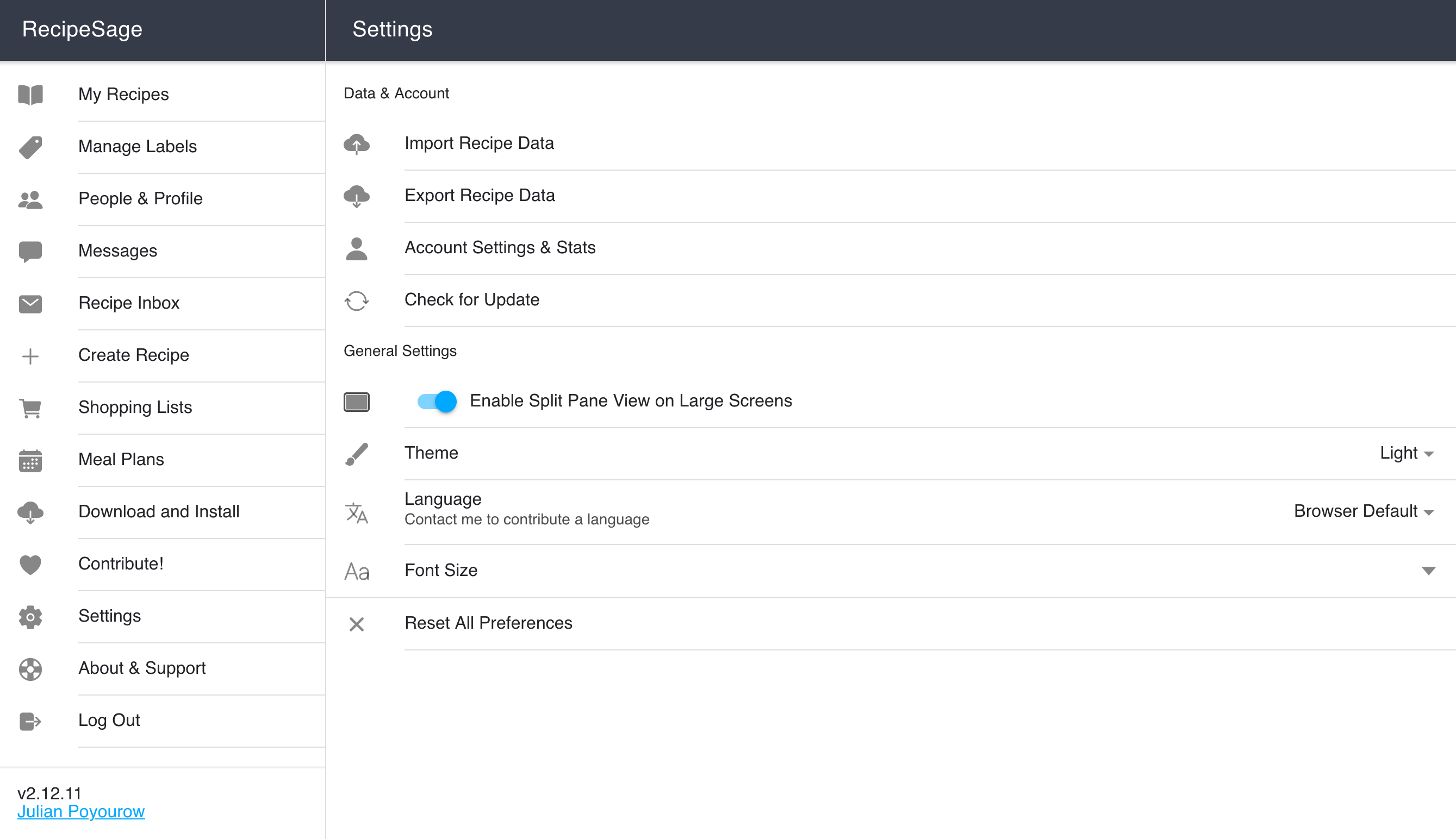
Enable Split Pane View on Large Screens
Note: This option will not appear on devices with smaller screens.
When enabled, and when on a large device such as a laptop, desktop, or large tablet, the app will change from this:
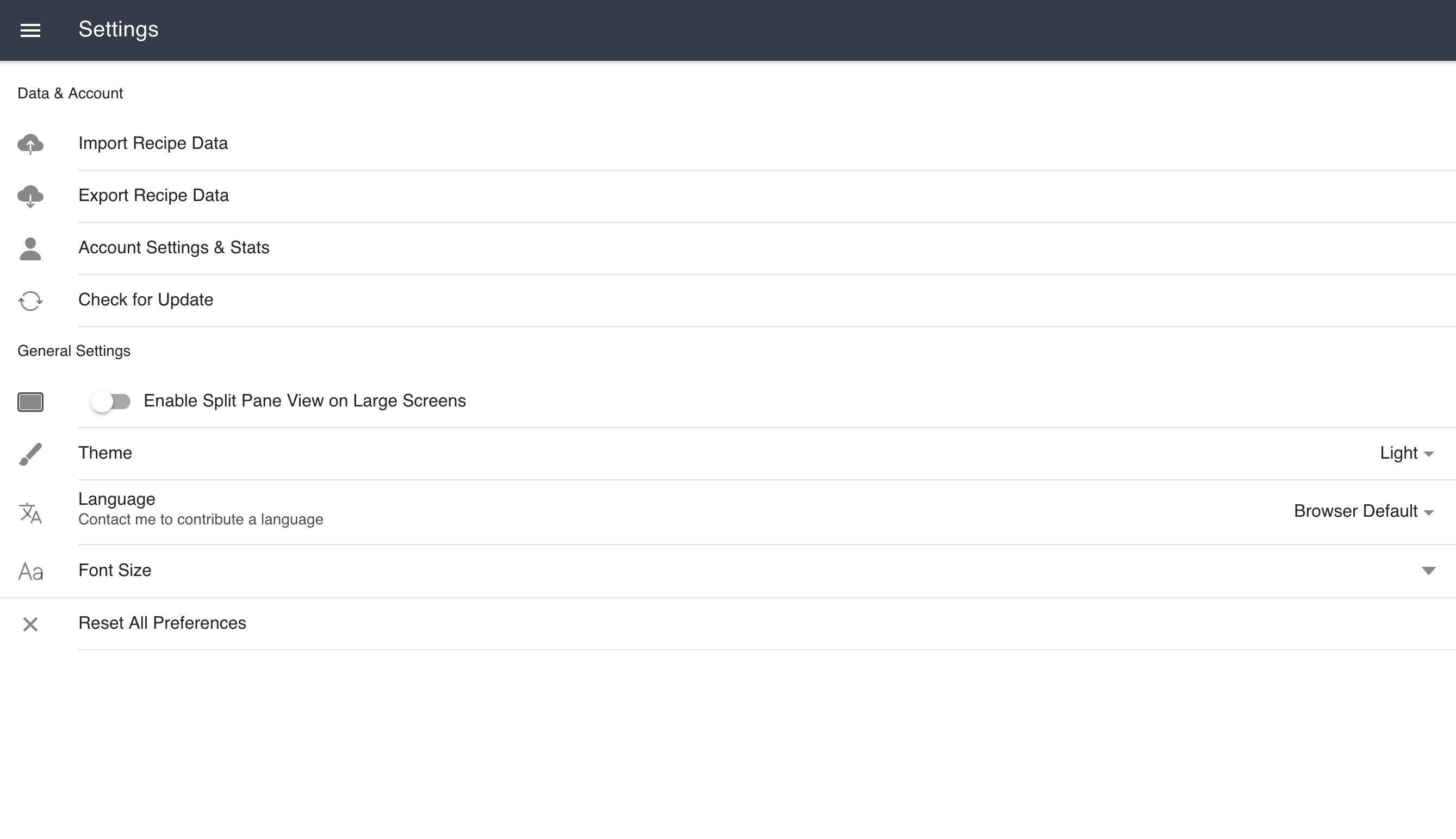
to:
Enable Offline Mode
Offline mode serves your recipes from the copy cached on your device instead of waiting on the network. It's useful when you have a weak or unreliable connection, such as in a grocery store, where requests can hang for a long time before completing.
While offline mode is on:
- Reading and searching your recipes is served instantly from your device.
- Actions that require the server, such as creating or editing a recipe, are unavailable and will show an "Offline Mode Enabled" notice.
Offline mode only lasts for your current session. It always turns itself off the next time the app restarts (note: going to the homescreen won't restart the app, just background it). You can turn it off sooner at any time with the toggle here on the settings page.
To make sure your device has an up-to-date copy of your recipes, use Trigger Cache Sync for Offline while you still have a good connection.
Offline mode requires a completed sync. If this device has never finished one, the toggle will explain that a sync is needed and offline mode will stay off, since there would be nothing cached to show you.
Offline Mode Prompt
When RecipeSage notices that a request is taking a long time, it can offer to turn on offline mode for you. This setting controls that behavior:
- Ask Me (default): Offer to enable offline mode the first time a request is slow during a session.
- Never: Do not offer, and leave enabling offline mode entirely up to you.
This prompt only appears once this device has completed a sync. Until then, RecipeSage will not offer offline mode regardless of this setting.
Theme
The theme setting allows you to change visual appearance in the app to enhance readability. By default, the app will detect your system preference (dark/light) and adjust accordingly. You can override that behavior by changing this preference.
Language
The language setting allows you to change the app's interface language. By default, the app will detect your browser's language preference and adjust accordingly. You can override the language that RecipeSage uses via this menu.
Contributing a Language
Although I'm unfortunately only fluent in English, I welcome anyone wishing to contribute a language!
Translations can be contributed via the RecipeSage Weblate instance at 📱 https://weblate.recipesage.com. Simply create an account with your email address or Github account and begin translating in your preferred language. Your changes will be included in the next release.
Entirely AI-generated translations are not currently accepted, since they very frequently produce low-quality and inaccurate results. If using AI to assist in your translation efforts, please use DeepL or Google Translate - do not translate using ChatGPT.
Font Size
The font size setting allows you to change the app's global font size. By default, the app will detect your browser's font size preference and adjust accordingly. You can override the font size that RecipeSage uses via this menu.
Cook Mode Font Size
This setting controls the font size used only while 📖 cook mode is active. It's separate from the global font size so you can make recipes easier to read from a distance while cooking without changing the rest of the app. It defaults to a larger size than the app default.
Start Page
The start page setting controls which page the app opens to when you first sign in or launch it. You can choose from:
- My Recipes (default)
- Manage Labels
- Meal Plans
- Shopping Lists
Auto-Expand Nutritional Information When Editing Recipes
When enabled, the nutritional information section on the edit-recipe page will automatically be expanded when the page loads. When disabled (the default), the section will start collapsed and must be expanded manually.
Reset All Preferences
This button will reset all preferences to their default settings.