Label Usage & Filtering
Video Guide to Using Labels
This same video also appears on the 📖 manage labels page, since it covers labels as a whole. Think of it as a visual overview to help you get oriented. It does not cover everything, so read on down this page for the details specific to using and filtering labels.
Filtering
You can use labels to filter recipes when browsing or searching.
To view all recipes within a single label, or within a combination of multiple labels, open the 📱 My Recipes page.
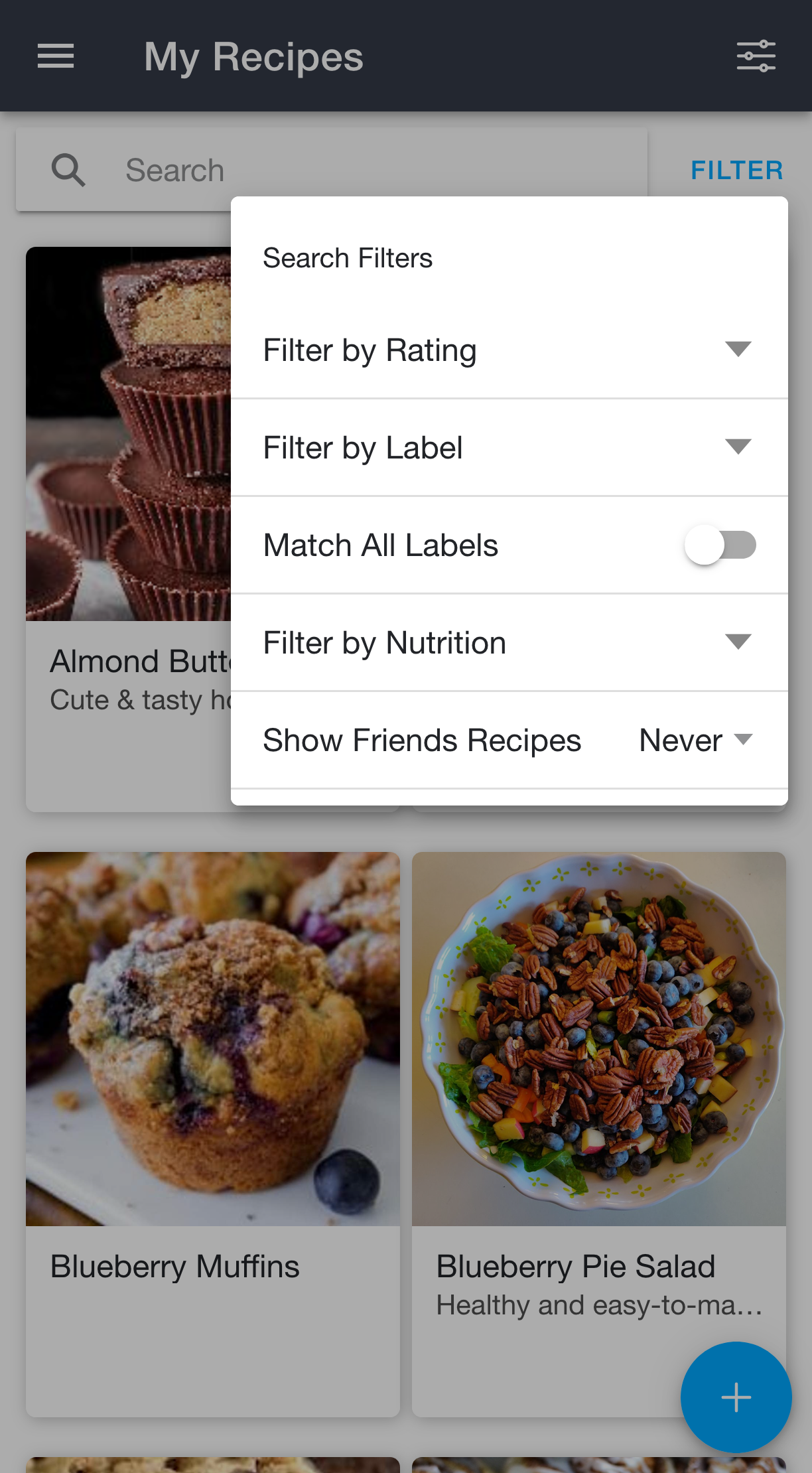
Tap Filter next to the search bar on the My Recipes page to open the search filters, then select "Filter by Label". (Note: filtering lives in its own menu, separate from the 📖 options menu that controls the list's appearance.)
You can then mark any labels you wish to filter by; the recipe list will only show recipes with the labels you selected. You can further narrow the list by searching.
By default, selecting more labels to filter by is inclusive. In other words, selecting multiple labels includes labels with any of the selected labels. If you'd like to instead have the filter be exclusive, enable the "Match All Labels" toggle. When this option is enabled, selecting additional labels will include only labels that have all of the selected labels present.