Clip Tool Browser Extension
The RecipeSage clip tool browser extension provides a very quick way to import recipes from the web.
Although it's possible to import recipes using the 📖 autofill from URL feature, there are a number of known limitations, but also requires more interaction. The clip tool browser extension is convenient and makes it really quick and easy to clip a recipe from the web directly into your RecipeSage account.
Installation
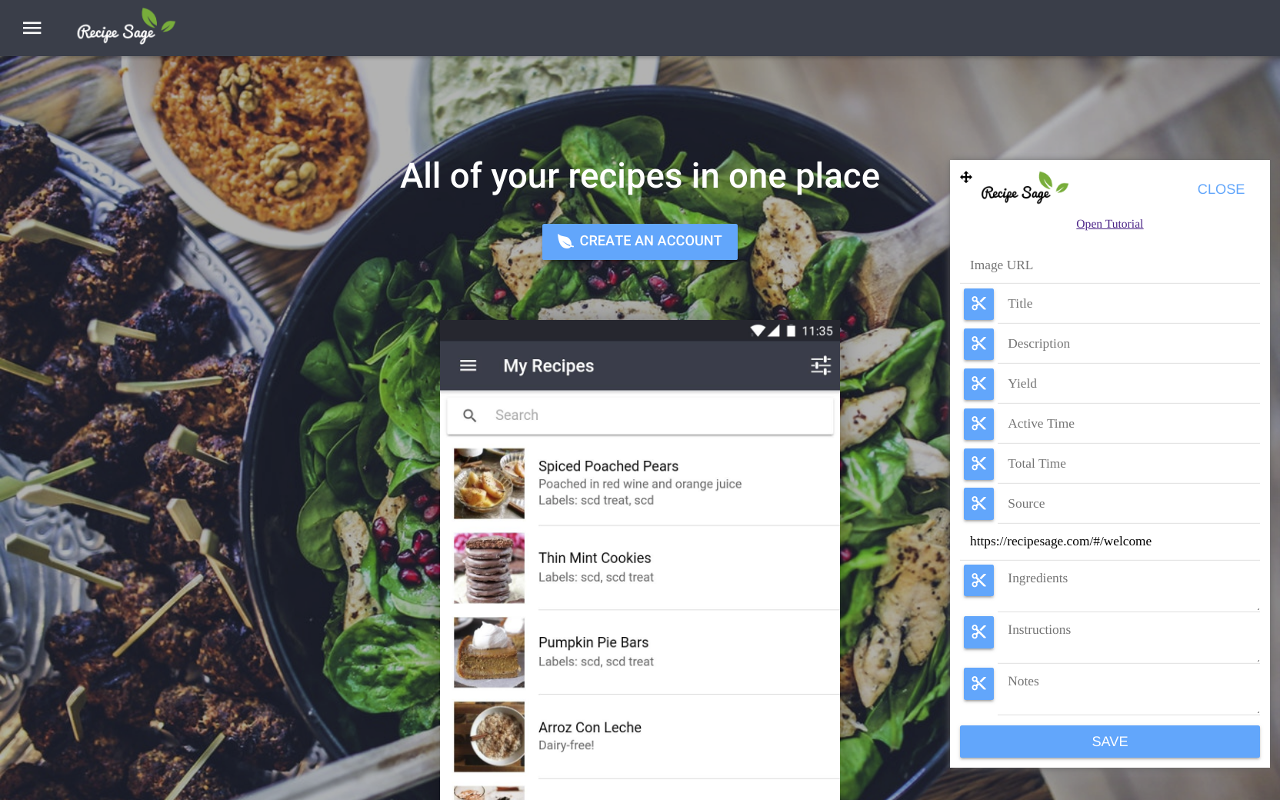
Adding the RecipeSage browser extension allows you to quickly select text from a webpage and save recipes directly to your account via the handy clip tool. You can trigger the clip tool on most websites to grab text and import recipes into your collection.
To install the RecipeSage browser extension, you'll need to be using a browser that supports WebExtensions. At the time of writing, this includes Firefox and Google Chrome.
If you're using Firefox, 📱 click here. If you're using Google Chrome, 📱 click here.
Signing In and Getting Started
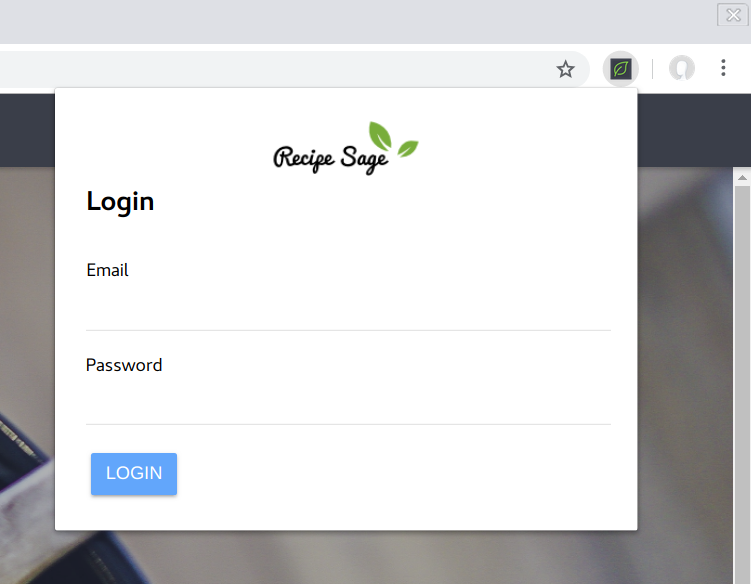
After installing the extension, you'll notice a new icon next to your navbar as pictured above. The first time you click that icon, you'll be prompted to sign in.
Note: If you don't have a RecipeSage account, the sign-in window will let you create one. Note: The clip tool cannot be activated on certain websites, such as browser settings pages and websites with certain security policies.
The Popup
After signing in, clicking the RecipeSage icon opens the popup. From here you can choose how to bring a recipe into your account.
Auto Import
Press Auto Import to send the current page to RecipeSage's clipper and save the detected recipe immediately. Two options are available beneath the button:
- Include nutrition: when checked, RecipeSage will also extract nutrition information from the page using machine learning and store it on the saved recipe.
- Open recipe in new tab after import: when checked, the saved recipe opens in a new tab as soon as the import completes. Uncheck this if you'd rather stay where you are.
Interactive Import
Press Interactive Import to open the clip tool overlay on the current page. The clip tool runs auto-detection in the background and then presents an editable form so you can review and adjust everything before saving. See below for details.
Using the Interactive Clip Tool
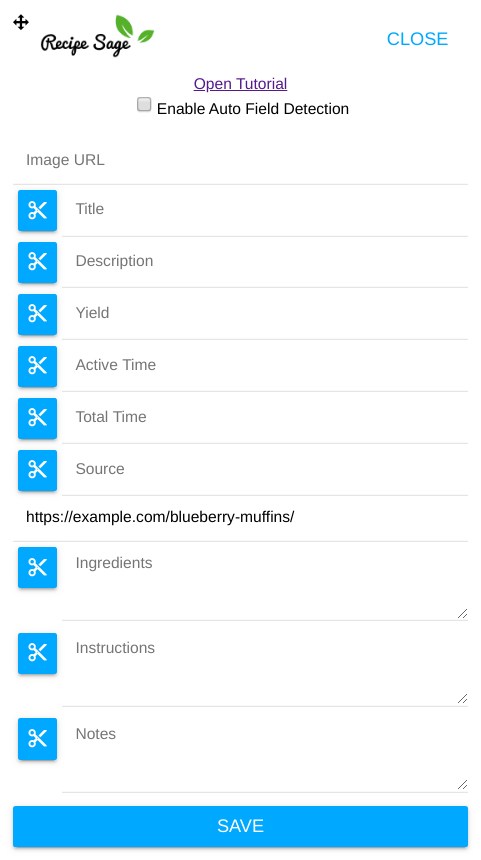
When you press Interactive Import, the clip tool overlays the current page. It first runs auto-detection to populate the fields, then shows you the dialog so you can verify or correct each field before saving.
To grab an image from the page, right click an image on the page, and select the "Snip Image" option. The image source URL will be copied to the image URL field.
After you're done filling in the desired fields, press the "Save" button. A popup notification will let you know if the recipe saved successfully or not. If the recipe saved successfully, you'll receive a popup with a link to open the recipe in the full view.
Note: Only the title field is required. Note: Not all images will be snippable. If you're having trouble with an image, try creating your recipe first, then edit the recipe on RecipeSage.com and add the image afterwards. Note: The clip tool is draggable. Click and hold on the icon in the upper left corner to move it anywhere within the page.
Nutrition
The interactive dialog also includes a collapsible Nutrition (per serving) section near the bottom, which mirrors the nutrition fields on the main edit-recipe page (serving size, calories, fats, carbohydrates, protein, vitamins, and so on). If the popup's Include nutrition option is enabled, the clip tool will automatically populate these fields from the page. Expand the section any time to review or adjust the values before saving.