Recipe Details
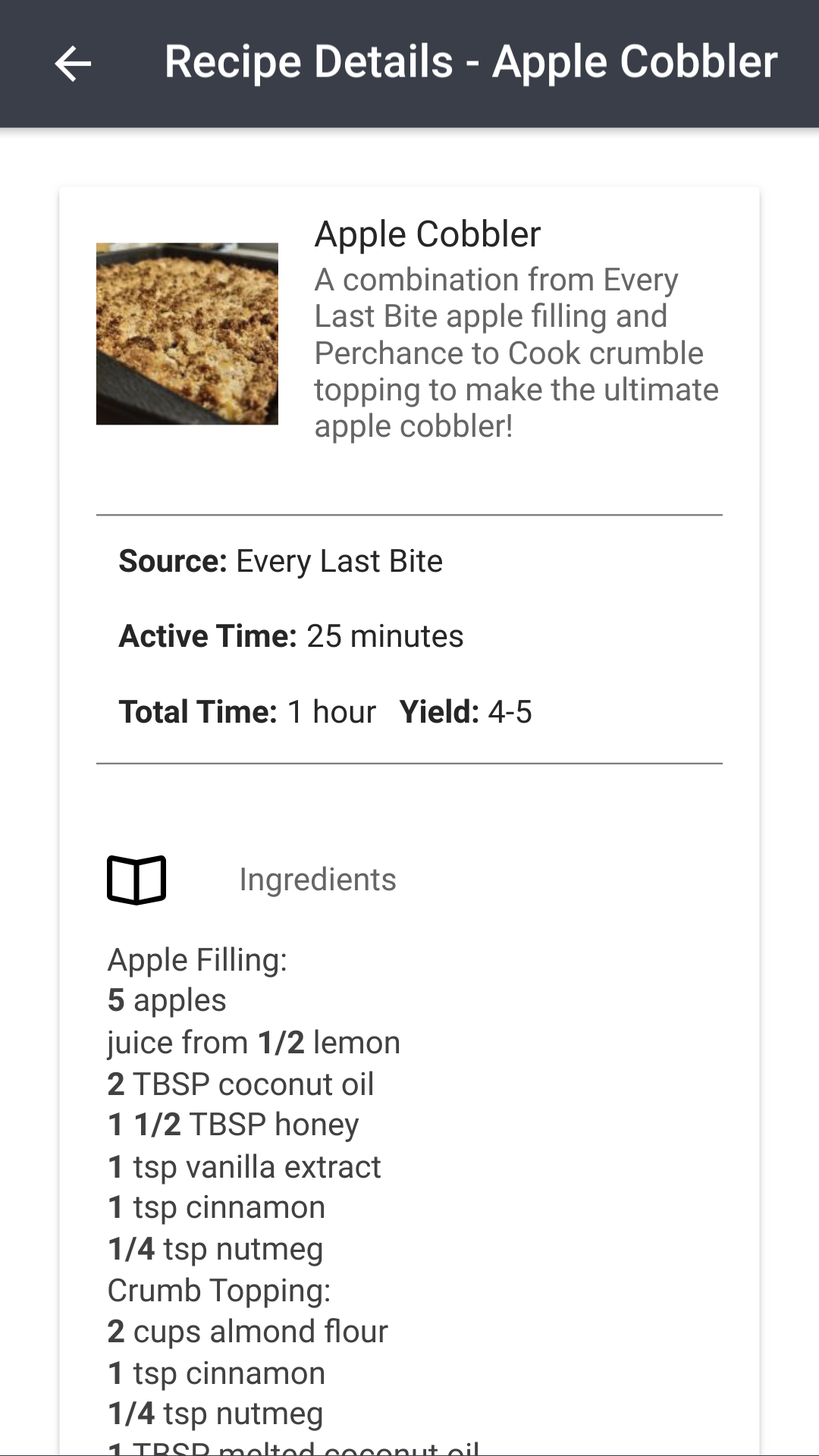
This page is the detailed view for a single recipe. All of the information for the selected recipe is printed here, as well as buttons for various actions.
The page layout will change based on the screen size of the device you're browsing on so that it's always optimized. For the best experience, we suggest having a device large enough to where the ingredients and instructions are shown side-by-side.
Video Guide
This same video also appears on the 📖 my recipes and 📖 creating and editing pages, since it covers recipes as a whole. Think of it as a visual overview to help you get oriented. It does not cover everything, so read on down this page for the details specific to the recipe details page.
Cook Mode
Cook mode is a distraction-free view designed for following a recipe while you're actually cooking. Open it from the options menu in the top right corner of the recipe details page by selecting Enter Cook Mode.
While in cook mode:
- The view focuses on just the ingredients, instructions, and notes, hiding the rest of the page and the app's navigation.
- The screen is kept awake so the device won't dim or lock while you work.
- The app attempts to go fullscreen where the device supports it. On devices that don't (notably some iPhones), the rest of the cook mode experience still applies.
- Ingredients and instructions can still be tapped to strike them through as you go, and your progress and scale carry over from (and back to) the recipe details page.
- If you have recipes pinned, the pinned recipe toolbar stays available for switching between them, and switching keeps you in cook mode.
You can adjust the recipe scale from cook mode using the scale button in the top bar. To leave cook mode, use the close button in the top left corner.
Cook mode uses its own font size so you can set it larger for reading from a distance, separate from the app's global font size. See 📖 Cook Mode Font Size.
Scaling
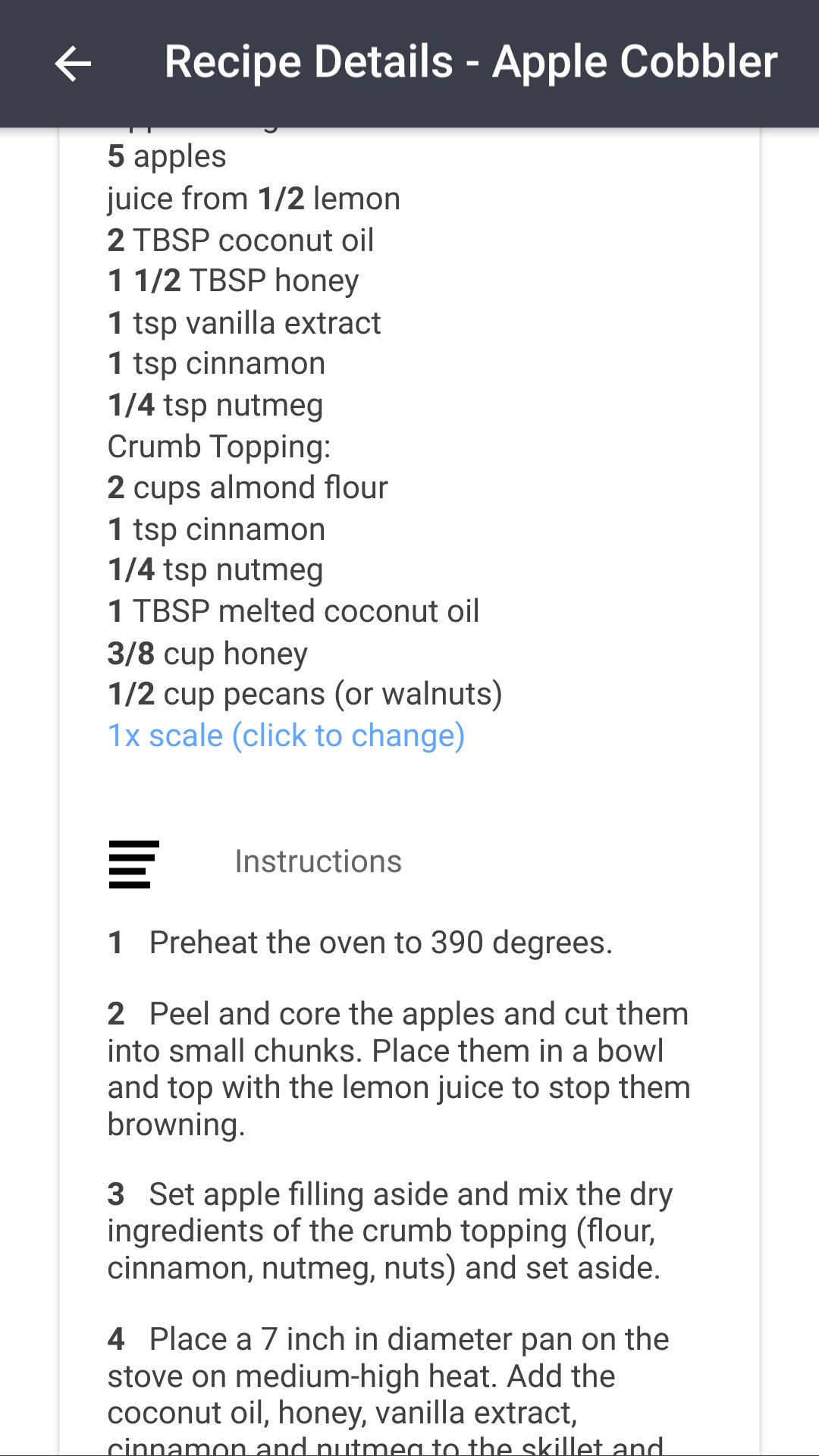
Click the scale link below the ingredients (it shows the current scale and unit system, e.g. "1x scale · Original") to open the Scale & Convert Recipe dialogue.
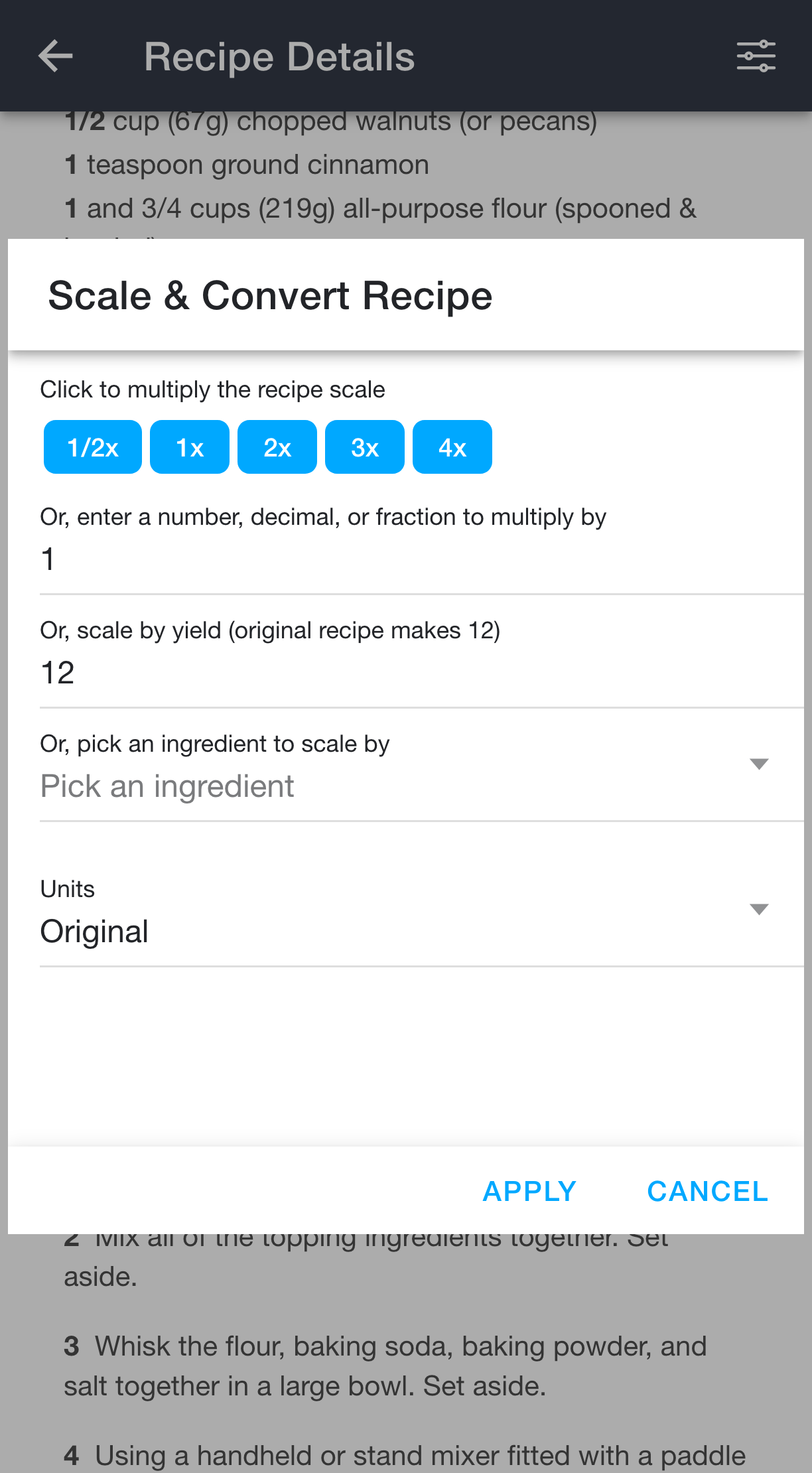
There are a few ways to set the scale:
- Tap one of the quick-scale buttons (1/2x, 1x, 2x, 3x, 4x).
- Enter a number, decimal, or fraction to multiply the recipe by.
- Scale by yield: enter how many servings or units you want, and RecipeSage works out the multiplier.
- Pick an ingredient to scale by: choose one ingredient and enter the amount you have, and the rest of the recipe scales to match.
The ingredient quantities shown in bold will adjust. Keep in mind that any measurements that are not shown in bold aren't recognized and won't be scaled.
The Units dropdown converts between measurement systems. See 📖 Converting Between Metric and Imperial below.
Values entered into the scale field are not permanent. Once you close this recipe, the scale will default back to the scale entered in the recipe editor.
Decimal Commas
Ingredient quantities can be written with either a decimal point (1.5 cups) or a decimal comma (1,5 kg). Both are recognized and scaled, so recipes saved from German, Swedish, French, and other comma-using sources work the same as English ones.
When a recipe has no decimal of its own and scaling produces one (halving 3 kg, for example), the separator follows your 📖 app language. A German reader sees 1,5 kg where an English reader sees 1.5 kg.
Thousands separators are understood in both styles, so 1,000 g and 1.000 g both mean one thousand grams. Where a number could be read either way, RecipeSage looks at the other quantities in the same recipe first: in a recipe that also lists 0,5 l, a 1,125 kg is read as roughly one and an eighth kilograms rather than as 1125. If the recipe offers no such hint, your app language decides.
Converting Between Metric and Imperial
The 📖 scale dialogue also has a Units dropdown with three options:
- Original: keep each ingredient in the units the author wrote it in
- Metric: convert imperial measurements to metric (e.g.
1 cup→240 ml) - Imperial: convert metric measurements to imperial (e.g.
500 g→~1 lb 1 3/4 oz)
To change units, open the scale dialogue from the recipe details page (click the scale link below the ingredients) and select a unit system from the Units dropdown.
The conversion is applied to both the ingredients list and to any measurement-style {} placeholders within the instructions (for example, {236ml} or {2 cups}). Measurements that can't be cleanly converted will keep their original unit.
Smart Unit Switching
When 📖 scaling a recipe, RecipeSage will automatically switch to a more natural unit if a scaled amount doesn't land on a clean cooking fraction. For example, scaling 1 cup by 1/16 displays as 3 tsp instead of 1/16 cup. When a perfectly clean result isn't possible, the result is prefixed with ~ to indicate an approximation.
This applies regardless of the Units setting in the 📖 scale dialogue.
Nutrition
If the recipe has any nutrition fields filled in, a Nutrition (per serving) section is displayed on the recipe details page. It shows the serving size (when set), calories, macros (with total fat broken into saturated, trans, polyunsaturated, and monounsaturated), and the vitamins/minerals RecipeSage tracks. Anything recorded in the free-form "Other Nutrition Details" field is shown below the structured values. Fields that were left blank in the recipe editor are hidden.
RecipeSage also reads and writes nutrition fields via schema.org/NutritionInformation when importing or exporting JSON-LD, and when clipping a recipe URL that publishes structured nutrition in its page markup.
See 📖 Nutrition for how to fill these fields in, including autofilling from pasted nutrition text.
Labelling
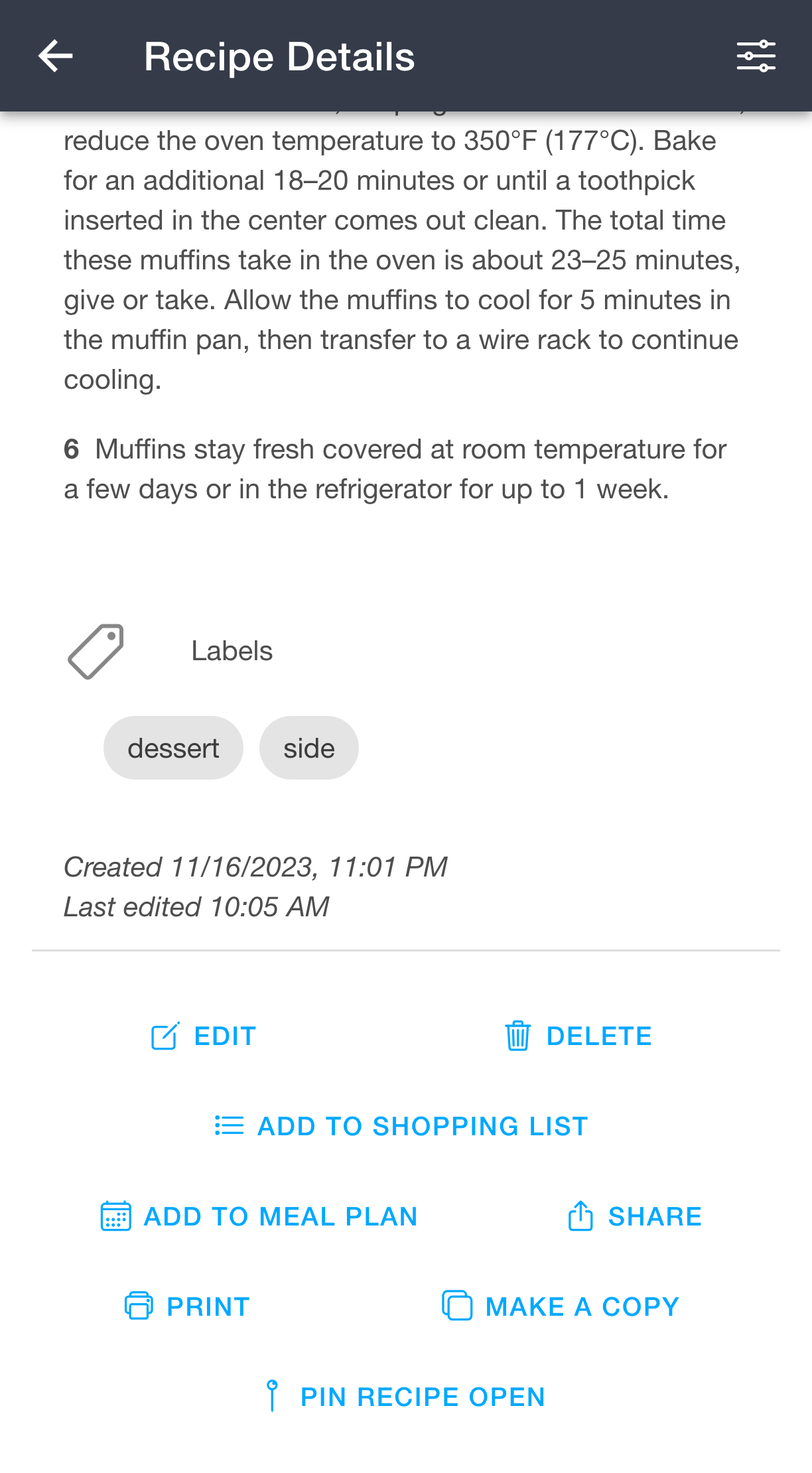
Labels are an excellent way of organizing your recipes. Think of labels as folders, but where a single recipe can be in multiple folders!
Any labels assigned to a recipe are shown in the Labels section near the bottom of the recipe details page. Clicking a label takes you to the my recipes page filtered by that label.
If you've grouped your labels into 📖 label categories, they'll be displayed grouped by category, with anything uncategorized shown under "General".
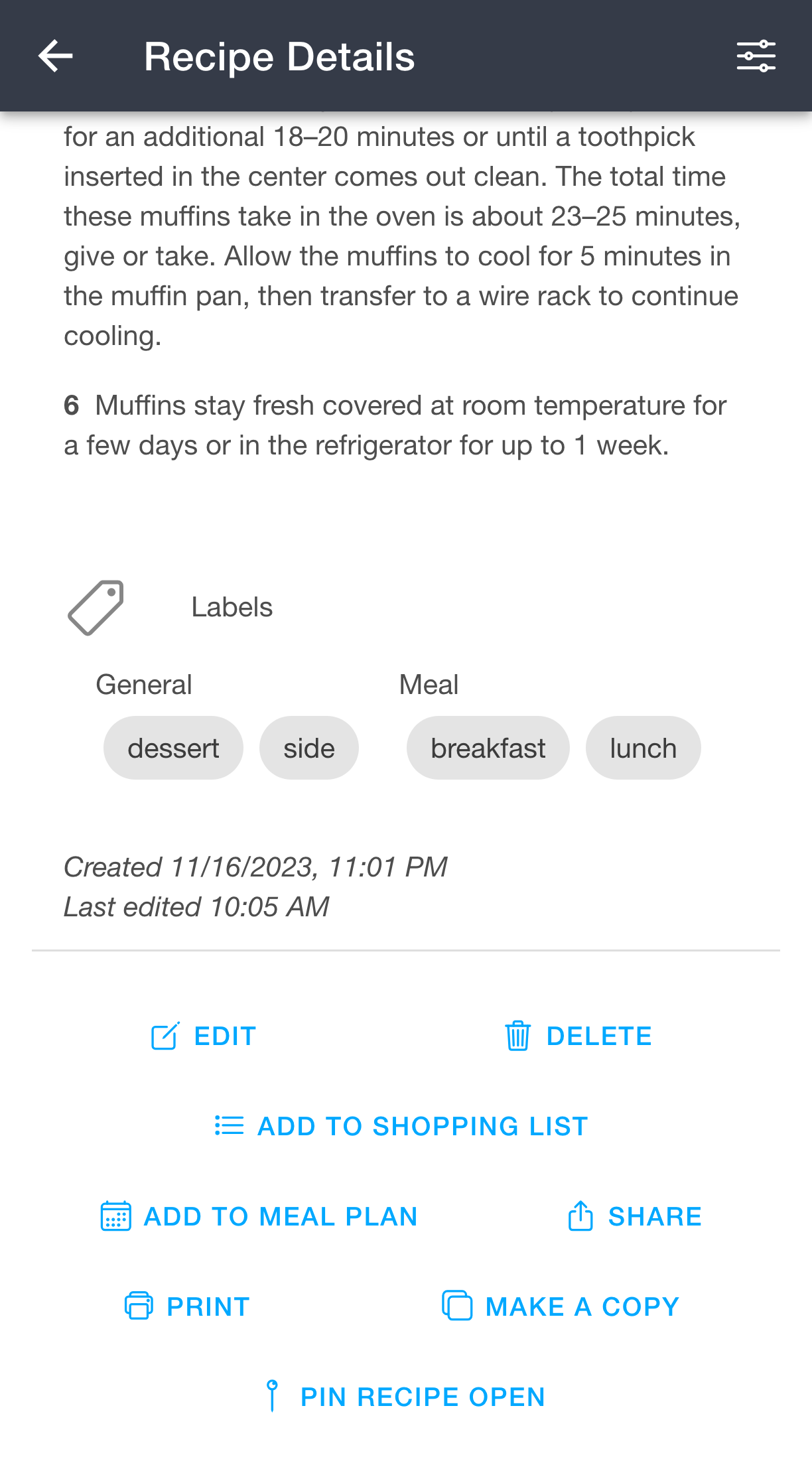
To add or remove labels on a recipe, open the 📖 recipe editor. Labels are managed from there.
Actions
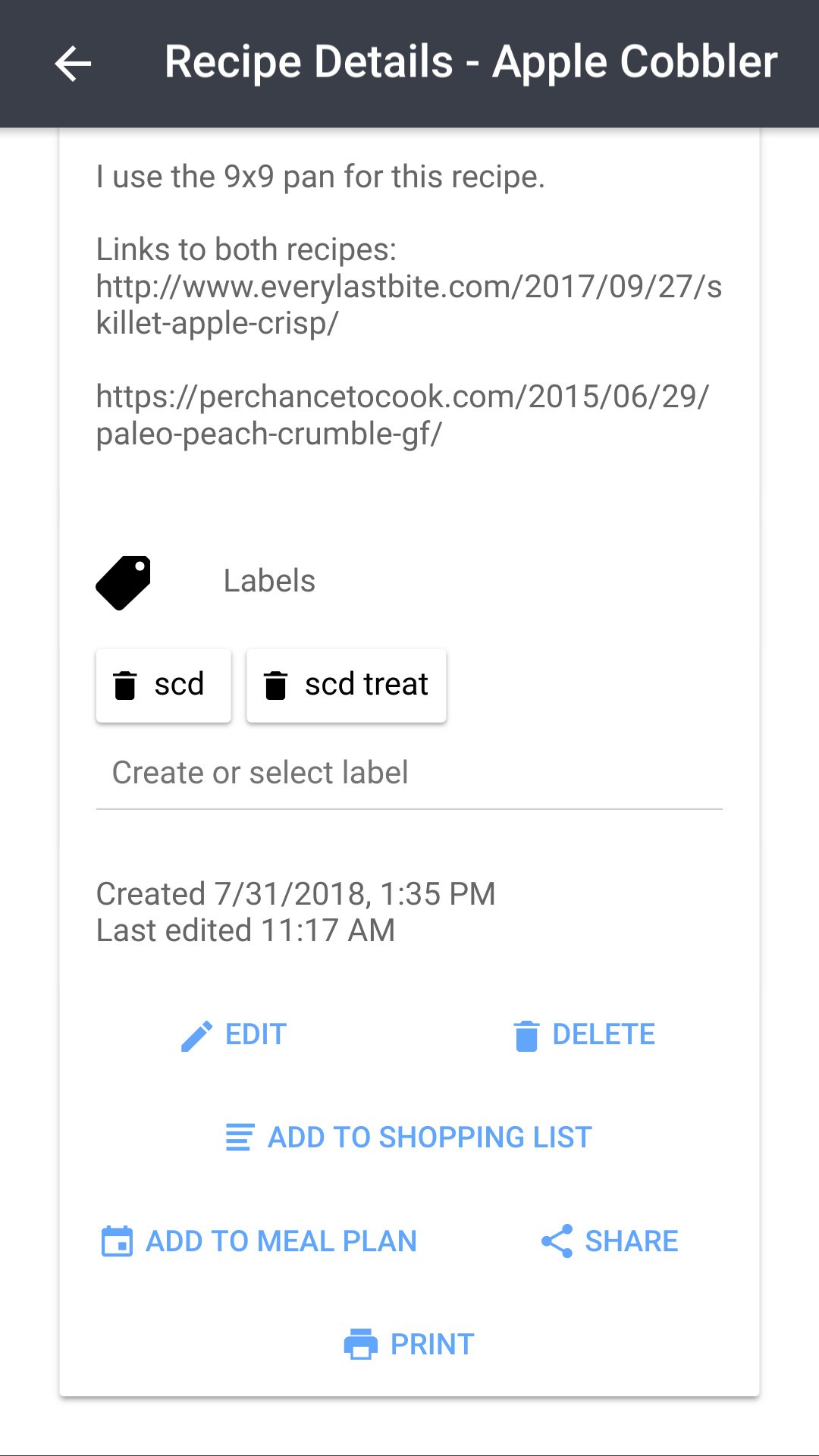
There are buttons for various recipe actions at the bottom of the recipe details page. The same actions are also available from the options menu in the top right corner (shown above), which additionally has a Keep Screen On toggle. Here is a brief summary of each of the actions:
Edit
Takes you to the editing/authoring page for this recipe, allowing you to change details about this recipe such as instructions and ingredients.
Delete
Starts the process of deleting this recipe permanently. Don't worry, you'll be prompted before the recipe is deleted. Confirming the deletion dialogue will completely and permanently remove the recipe from the system.
Add to shopping list
Opens the add to shopping list dialogue for this recipe.
Add to meal plan
Opens the add to meal plan dialogue for this recipe.
Share
Opens the share dialogue for this recipe, allowing you to send this recipe to another RecipeSage user, share it by link, or embed it.
Make a Copy
Creates a duplicate of the recipe in your own collection. Useful for keeping the original intact while you tweak the copy.
Mark as Made Today
Sets the recipe's 📖 Last Made date to today without opening the editor.
Pin Recipe Open
Pins the recipe to a toolbar so you can quickly switch between multiple recipes you're referencing at once.
Publish to Discover
Shares the recipe publicly to the 📖 Discover feed.
Add to Shopping List
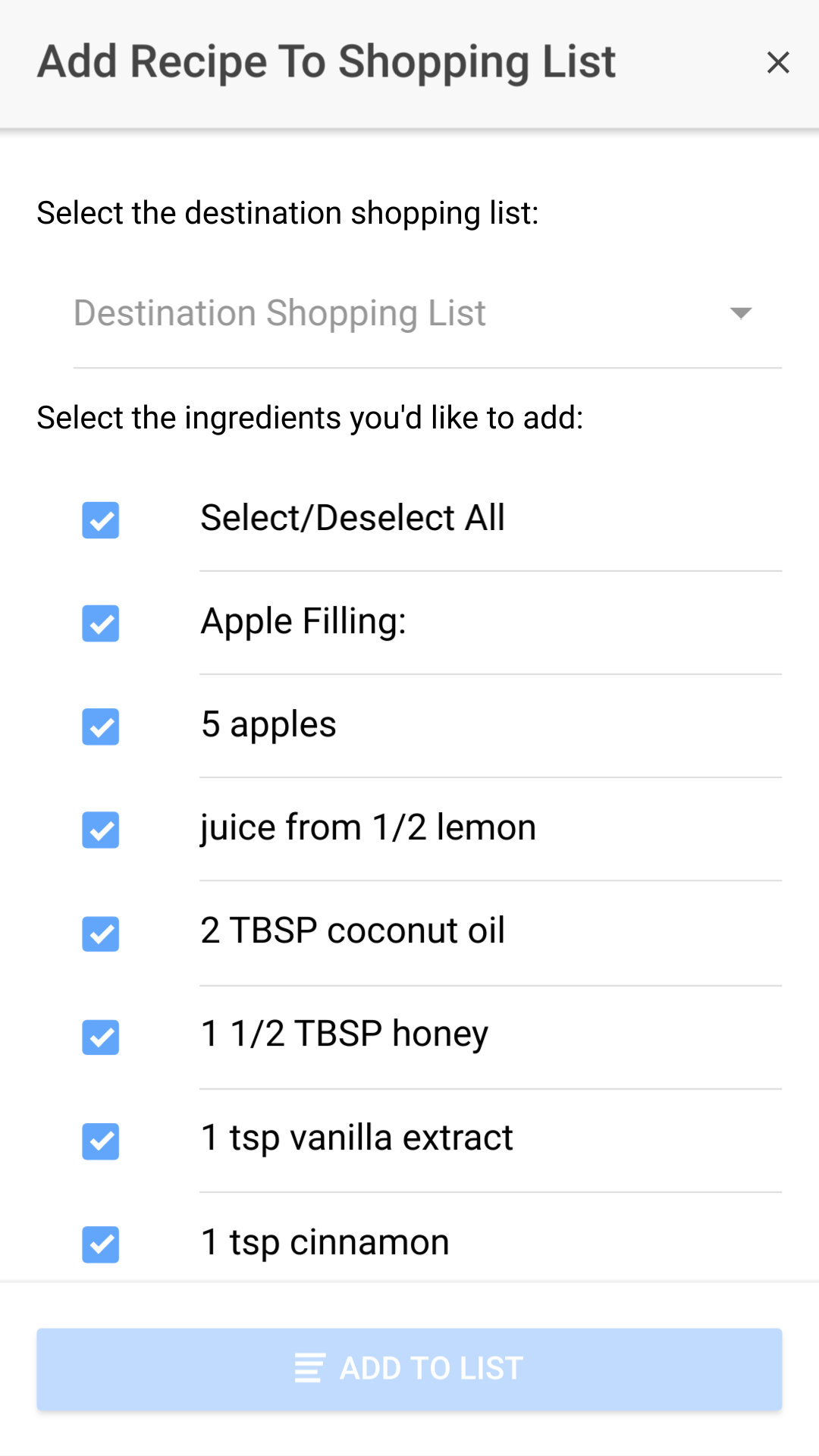
Shopping lists are a great way of keeping track of ingredients and items that you need from the store. Check out the shopping list tutorial to see how to use the various shopping list pages.
To begin the process of adding a recipe to a shopping list, press the add to shopping list button at the bottom of the recipe details page (as described in the recipe actions tutorial). You'll then be presented with the add to shopping list modal shown in the image above.
Select the list you'd like to add to by clicking the dropdown selector at the top of the modal. Then, select/deselect the ingredients that you'd like to add to the list. The select/deselect all button will toggle all of the ingredients.
Note: To use the add to shopping list modal your recipe will need to have some ingredients, and you'll need to have at least one shopping list in your account.
Add to Meal Plan
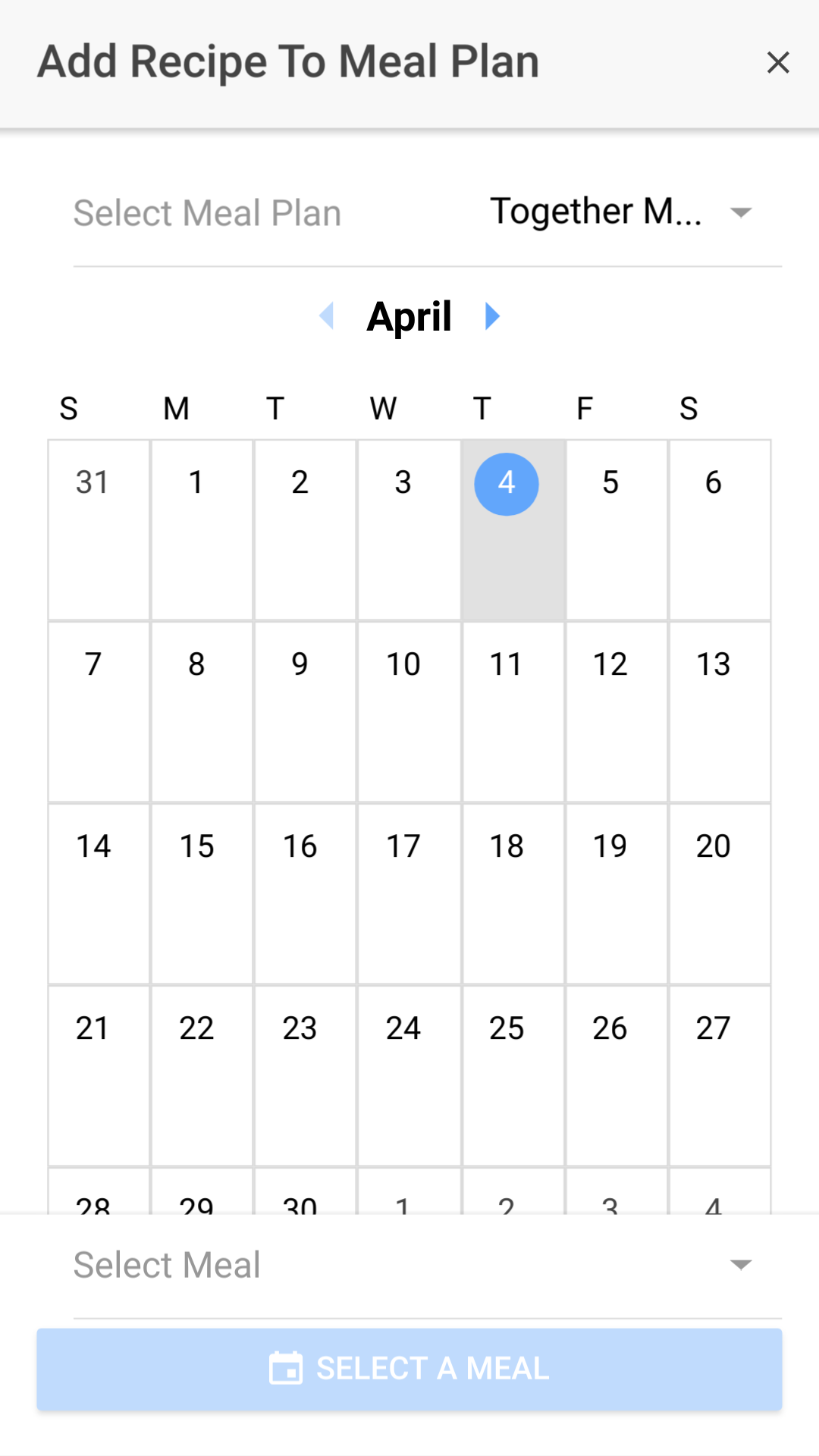
Meal plans are a great way of keeping track of which recipes you're going to cook on what day. Check out the meal plan tutorial to see how to use the various meal plan pages.
To begin the process of adding a recipe to a meal plan, press the add to meal plan button at the bottom of the recipe details page (as described in the recipe actions tutorial). You'll then be presented with the add to meal plan modal shown in the image above.
Select the meal plan you'd like to add to by clicking the dropdown selector at the top of the modal. Then, click the day that you'd like to add the recipe to in the interactive calendar. To switch months, click the arrows next to the month name at the top of the calendar.
Lastly, select the meal that you'd like to designate for this recipe by clicking the dropdown selector at the bottom of the page.
Note: To use the add to meal plan modal you'll need to have at least one meal plan in your account.
Sharing
To share a recipe, open the recipe details page and click the share button in the top right corner options menu.
Note: If you're looking for ways to share more than just a single recipe, see the 📖 sharing documentation.
There are three options for sharing a recipe:
- Directly within the app to a RecipeSage user
- By creating a shareable link and sharing outside of the RecipeSage app
- By embedding it into a website
- Adding the recipe to your RecipeSage profile 📖 covered here
To a RecipeSage User
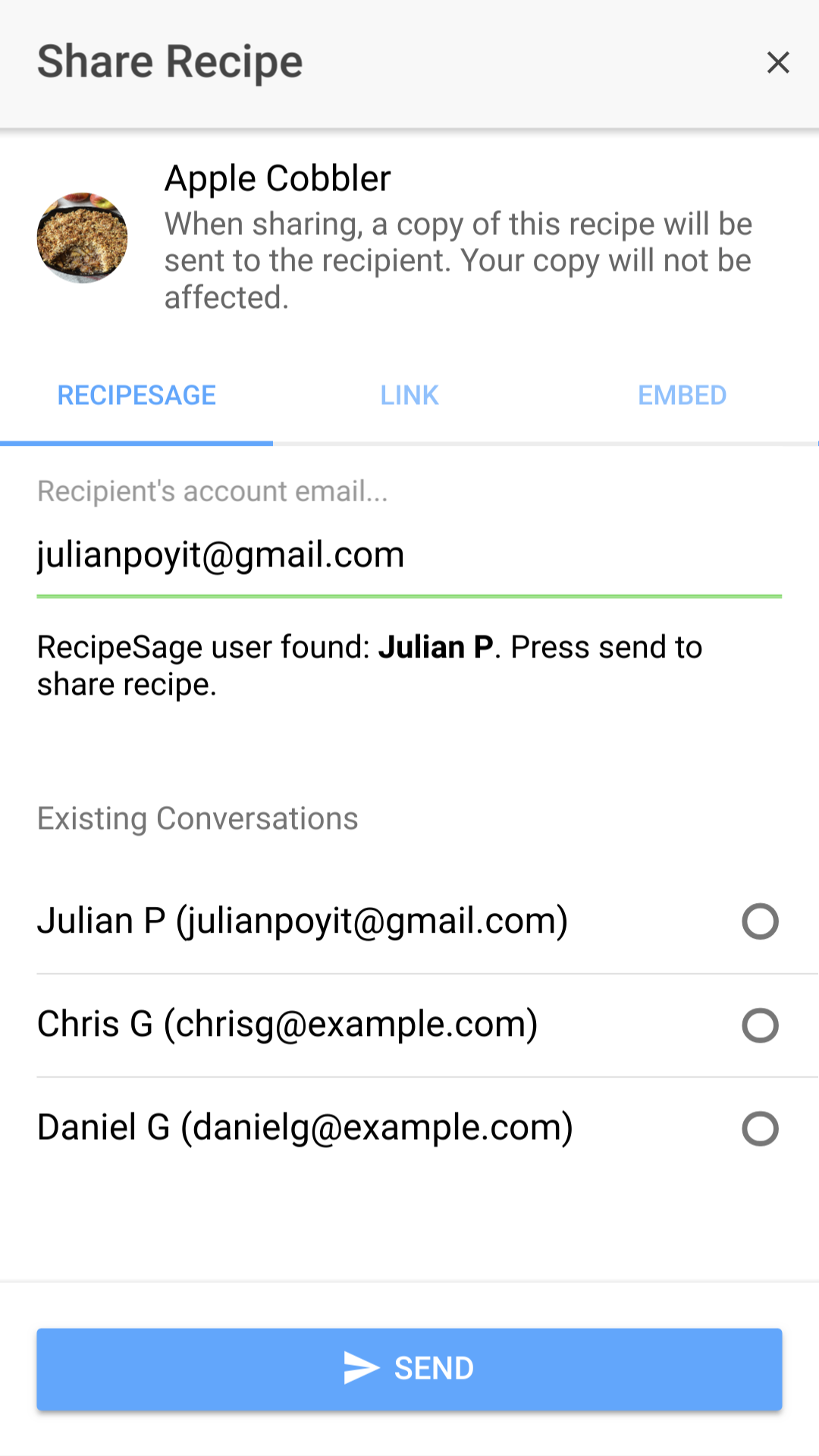
The recipe sharing modal allows you to send a recipe to another RecipeSage user's account, share via link, or share via embed.
To begin the process of sharing a recipe to another user's account, press the share button at the bottom of the recipe details page (as described in the recipe actions tutorial). You'll then be presented with the share modal shown in the image above.
To select a recipient, type the email or @handle of the RecipeSage user you'd like to send the recipe to into the "Search by email or handle" field. Matching users will appear as you type so you can select the one you want.
You can also select the recipient from your list of existing conversations if you already have an existing message thread with the user (this list will not be shown if you do not have at least one existing message thread with another user).
After selecting the recipient user via either method, you'll be able to press the send button. After sending, a copy of the recipe will be sent to the recipient. Keep in mind that any modifications that they do to the received copy will not affect your copy of the recipe.
Note: To send the recipe to a non-RecipeSage user, see below (sharing a recipe by link).
By Link
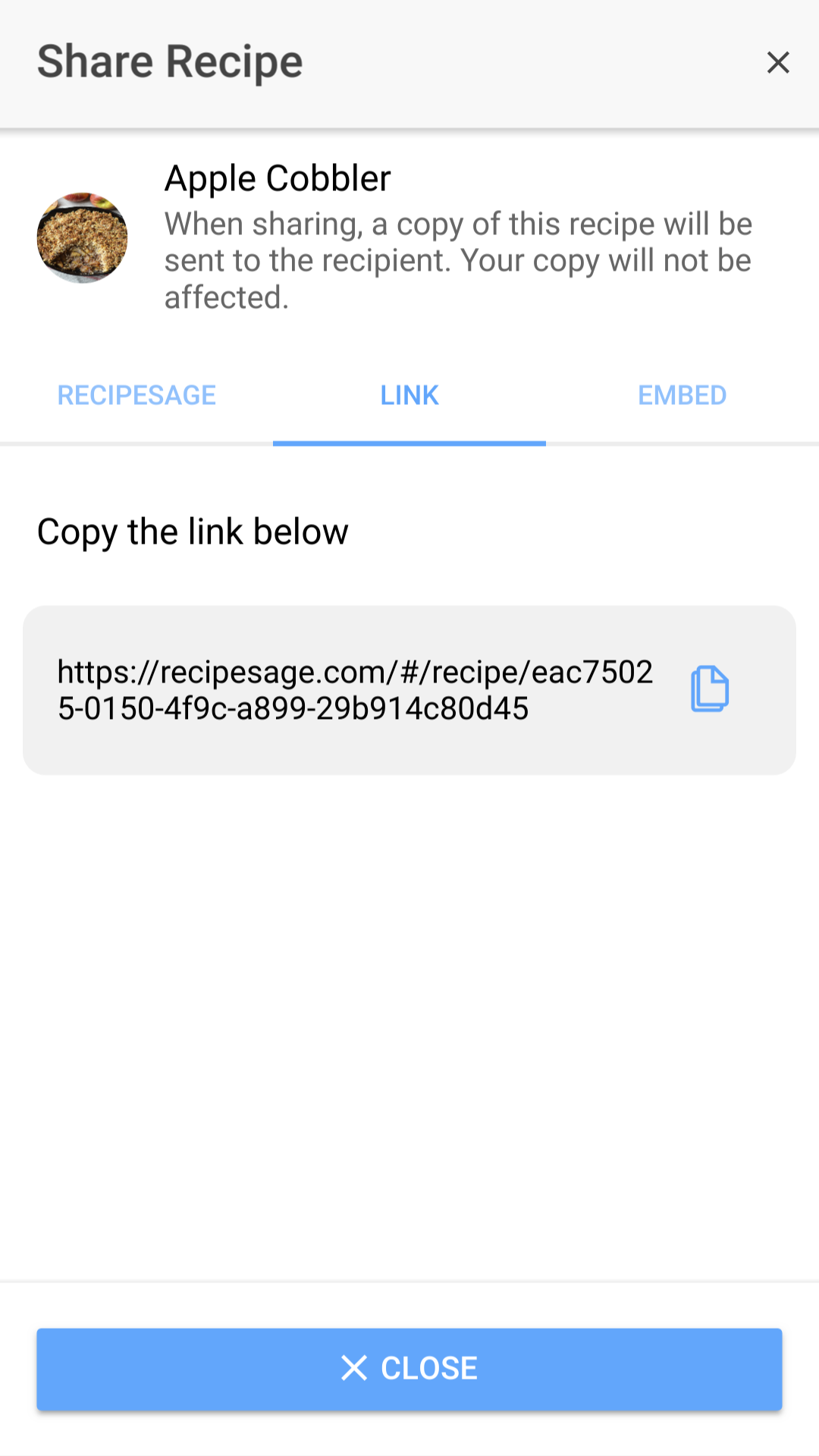
The recipe sharing modal allows you to send a recipe to another RecipeSage user's account, share via link, or share via embed.
To begin the process of sharing a recipe via link, press the share button at the bottom of the recipe details page (as described in the recipe actions tutorial). You'll then be presented with the share modal. To share by URL, select the "link" tab.
Select the URL shown (double click to select for desktop, or tap-and-hold to select for mobile) and then copy/paste wherever desired.
Note: The share button depicted to the right of the URL will only show up on some devices.
Note: This URL will only be valid if the recipe exists. If you delete the recipe, the link will become invalid.
By Embed
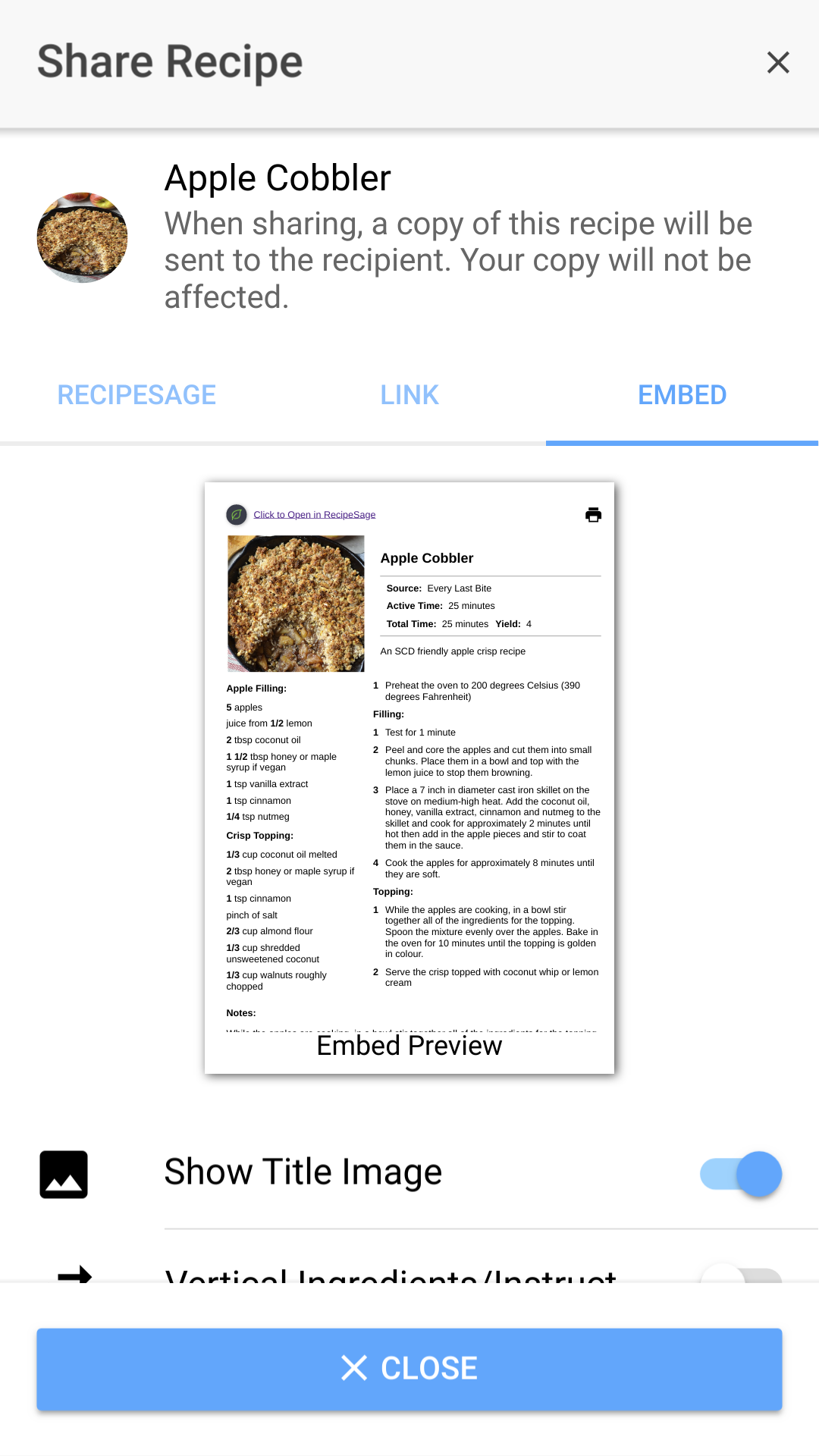
The recipe sharing modal allows you to send a recipe to another RecipeSage user's account, share via link, or share via embed.
To begin the process of sharing a recipe via embed, press the share button at the bottom of the recipe details page (as described in the recipe actions tutorial). You'll then be presented with the share modal. To share by embed, select the "embed" tab.
Select the options desired, as described below: Show Title Image: Toggling this will enable or disable the display of the image associated with the recipe. Disable Columns: Toggling this will switch the embed between vertical and column-based ingredient/instruction layout. Show Print Button: Toggling this will show or hide the print button within the embed. Hide Sources: Toggling this will show or hide the recipe source and source URL. Hide Notes: Toggling this will show or hide the recipe notes. Height: This will adjust the size of the window when embedded. Note: This will not change the appearance of the preview Width: This will adjust the size of the window when embedded. Note: This will not change the appearance of the preview
After you've selected the desired options, copy the provided code and paste it anywhere within the body of your webpage, blog post, etc.
Printing
Note: If you're looking for how to print all recipes, see 📖 Printing All Recipes or Exporting All Recipes to PDF instead.
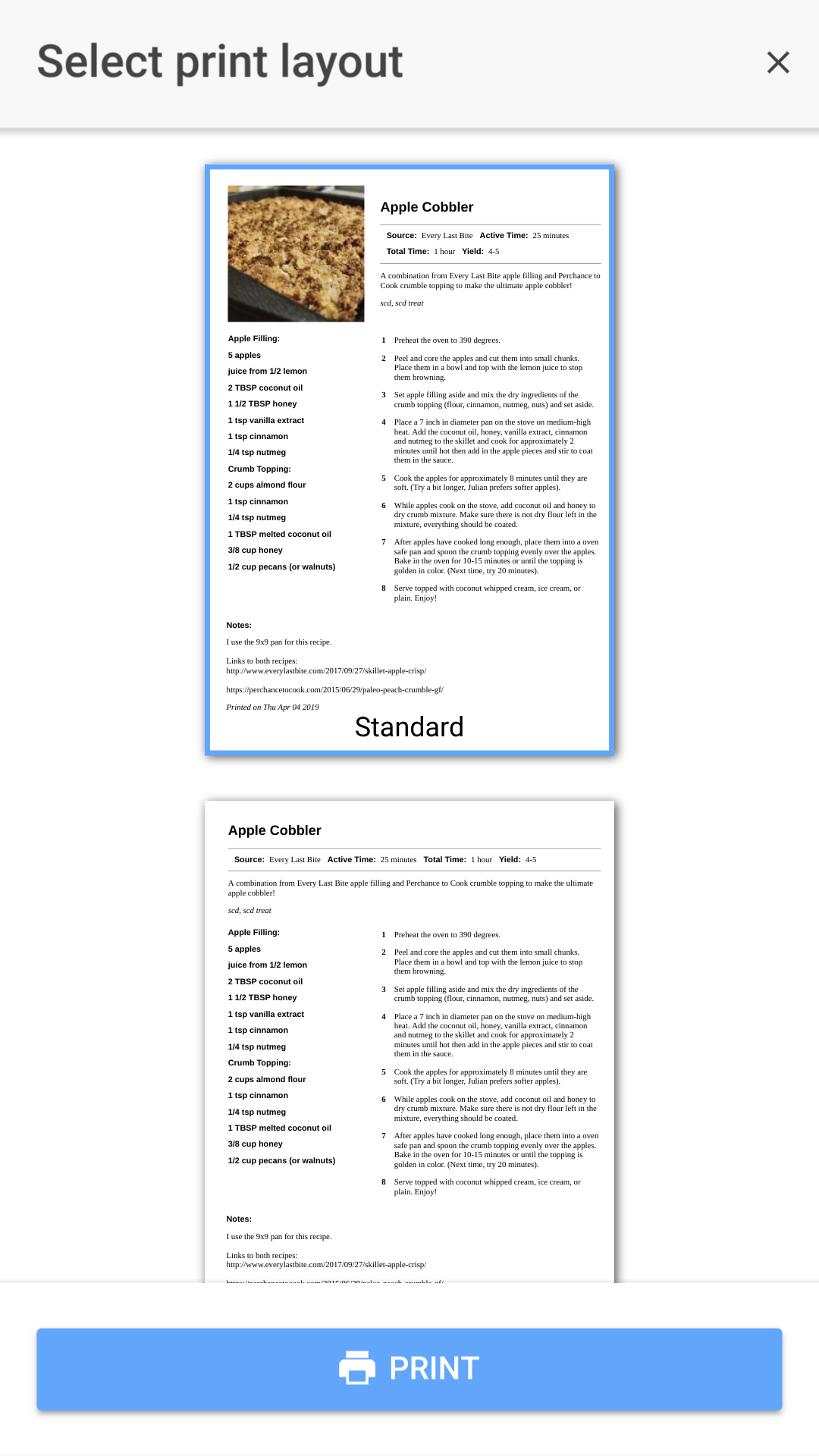
The print recipe modal allows you to print a hardcopy of your recipe.
To begin the process of printing a recipe, press the print button at the bottom of the recipe details page (as described in the recipe actions tutorial). You'll then be presented with the print layout modal shown in the image above.
To select a print layout, click the desired layout displayed in the layout list. Options include Standard, Standard No Image, Half Sheet, Columns, and Half Sheet, Compact, No Columns.
After selecting a print layout, you'll be able to press the print button. The print button will trigger your system print dialogue.
In your system print dialogue, you can adjust margins, change color settings and select your printer. Depending on your browser and operating system version, your system print dialogue will look vastly different, therefore no screenshot is shown for this step.
Note: If you have trouble using this feature, try using Firefox or Chrome. Other browsers may not perform the same.