Your Profile
A RecipeSage profile allows you to share content within RecipeSage with other users. You can share individual recipes, all recipes within a label, or your entire collection with friends or the public.
A profile is the best way to share your recipe catalogue with other users, such as your family.
Creating a Profile
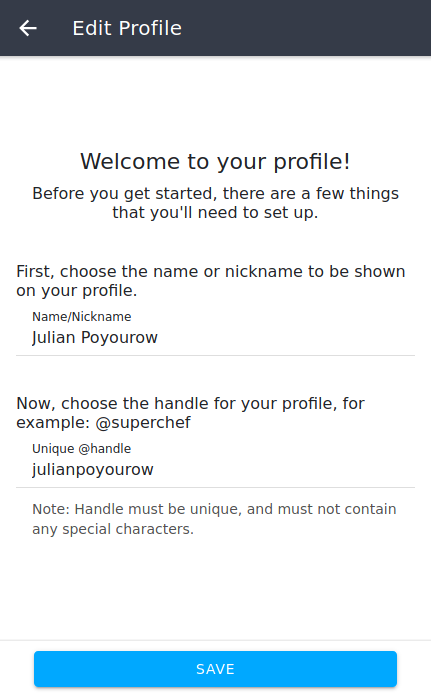
To setup your profile, you'll first need to enter a publicly visible name. This corresponds to the nickname you set on your account when you registered. Please avoid entering profane or offensive names, and feel free to report offensive or profane names that you see.
Next, you'll need to enter a unique @handle. This is a unique word or phrase that will identify you on RecipeSage. It has to be unique to you, so you'll see a warning when you enter a handle that someone else has already claimed. This handle will be part of the URL for your profile, and others will be able to find you using this handle if you share it with them
Editing Your Profile
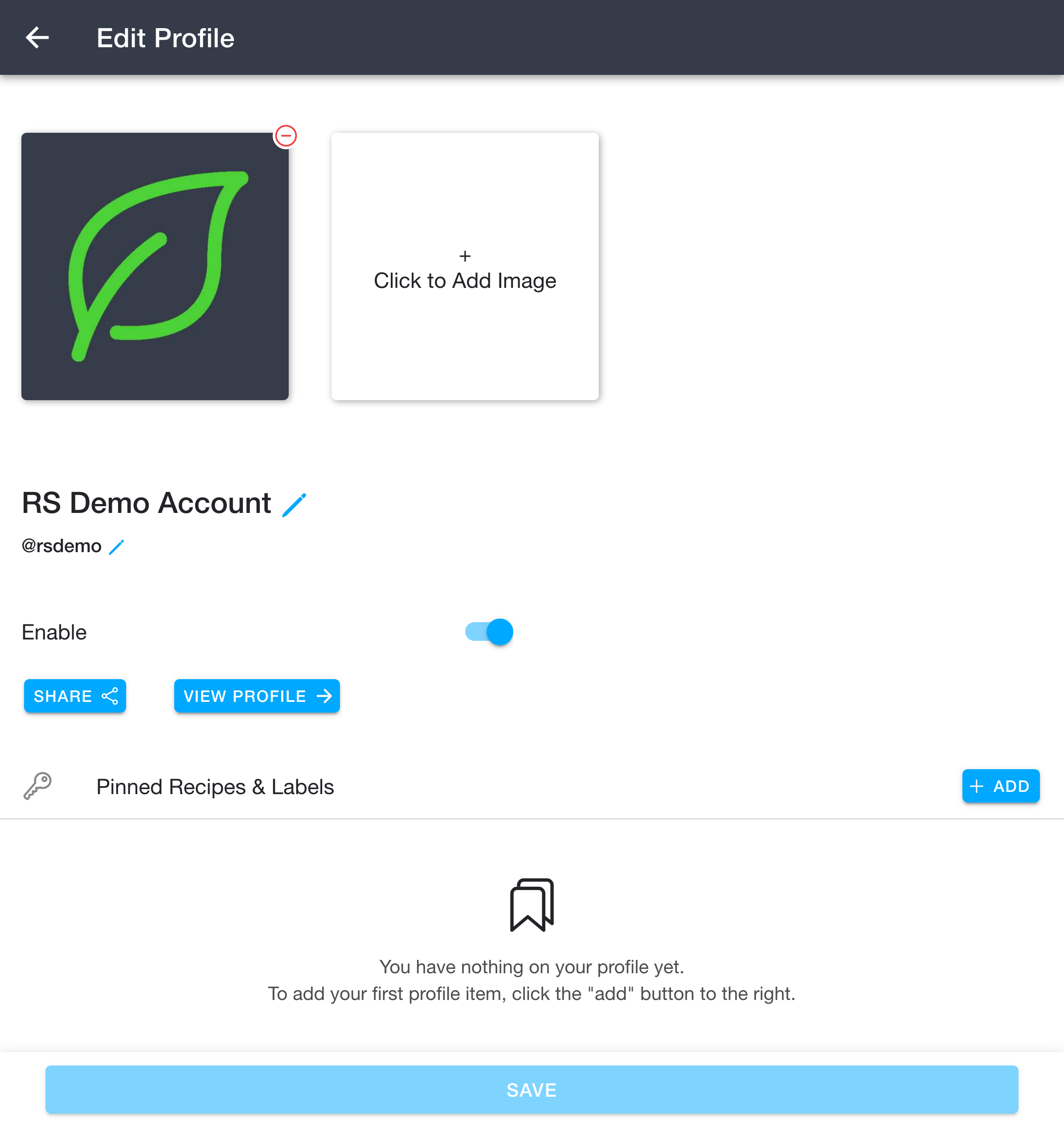
On the 📱 profile edit page, you'll be able to edit the details of your profile including adding and removing profile items.
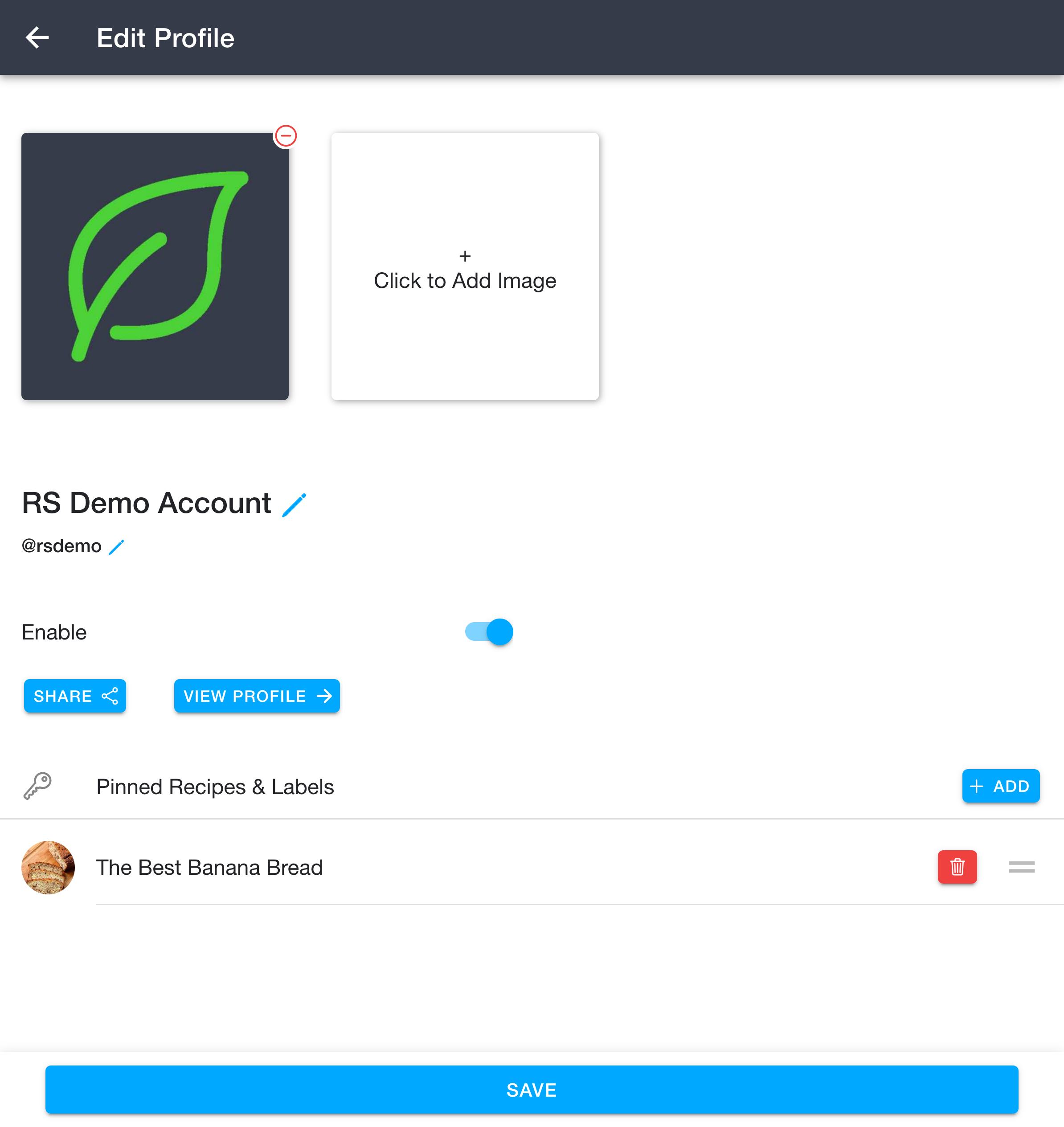
To edit your profile name or handle, click the pencil icon next to your name or handle, type the new name or handle you'd like your profile to have, and click the save button at the bottom of the page. You can also set a profile picture using the "Click to Add Image" box at the top.
The Enable toggle allows you to control whether the people feature is enabled within RecipeSage. If you disable your profile, you have effectively turned off all people related features. Other users won't be able to see your profile at all, including friends.
The Share and View Profile buttons let you share your profile link or preview how your profile looks to others. Sharing your profile is covered 📖 below.
Adding items to your profile is covered 📖 here. When your profile has no items yet, you'll see a prompt to add your first one using the Add button.
Note: Nothing on your profile will actually change until you press the save button at the bottom of the page. You're free to edit as much as you'd like before saving.
Adding Content to Your Profile
Adding items to your profile allows you to share individual recipes, all recipes within a label, or your entire collection with friends or the public.
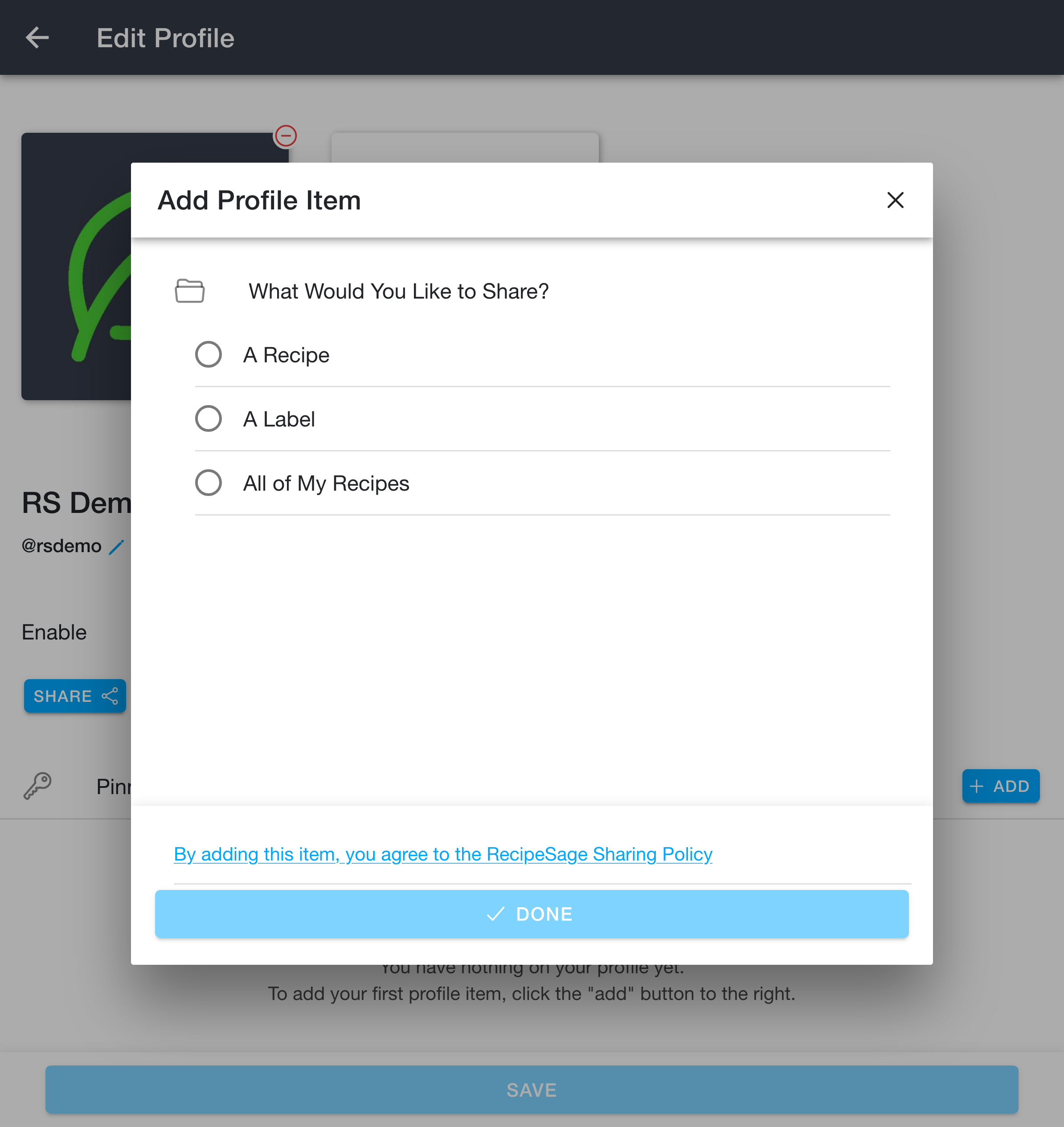
Navigate to the 📱 profile edit page and click the Add button next to the "Pinned Recipes & Labels" heading to open the "Add Profile Item" dialogue. This dialogue walks you through the process one step at a time.
Step 1: Choose what to share. Pick one of "A Recipe", "A Label", or "All of My Recipes".
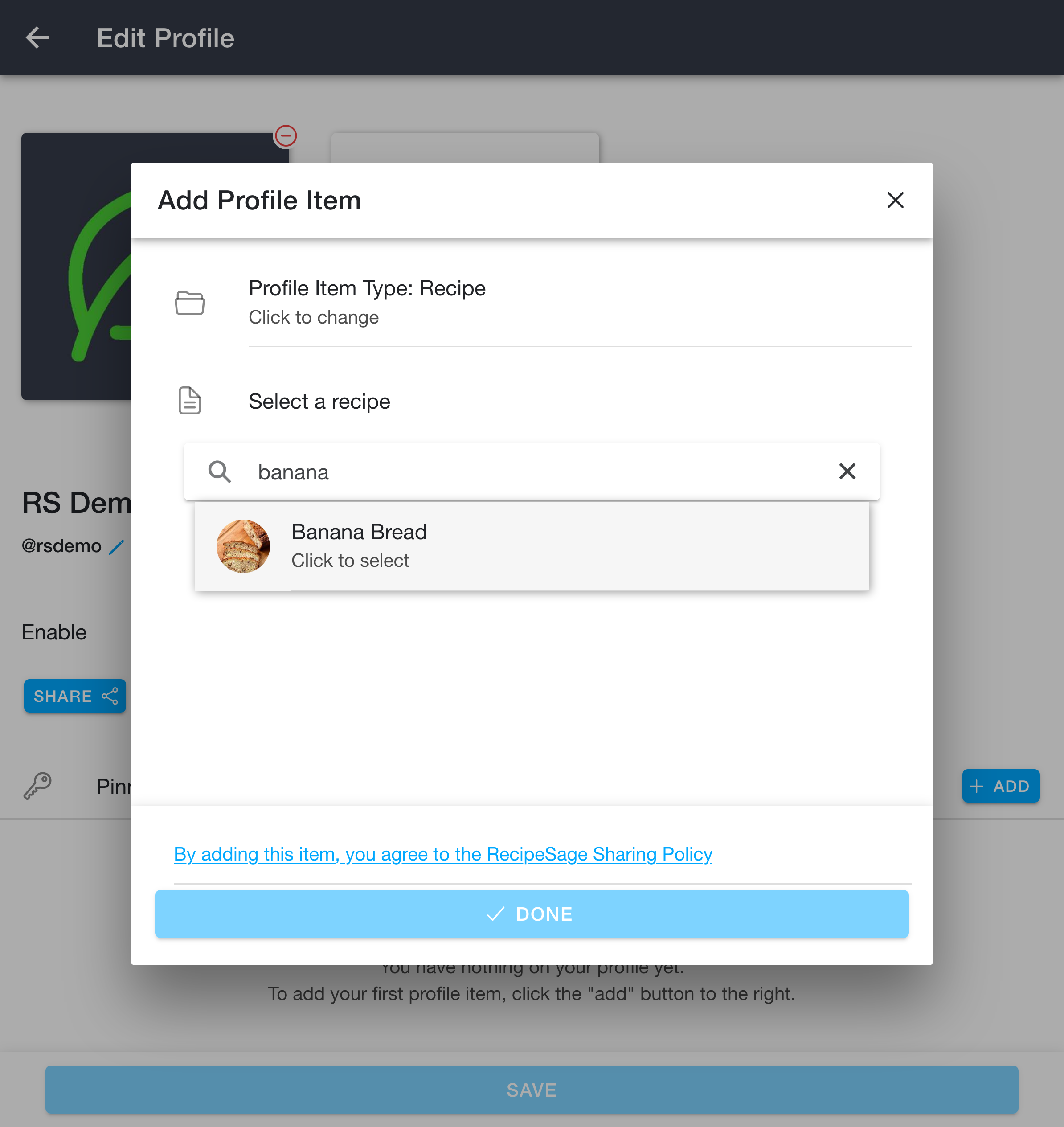
Step 2: Select the item. If you chose "A Recipe" or "A Label", search for and select the specific recipe or label you'd like to share. (If you chose "All of My Recipes", there's nothing to select and you'll skip straight to the next step.)
Step 3: Choose who can see it. Select either "Anyone (Public)" or "My Friends Only".
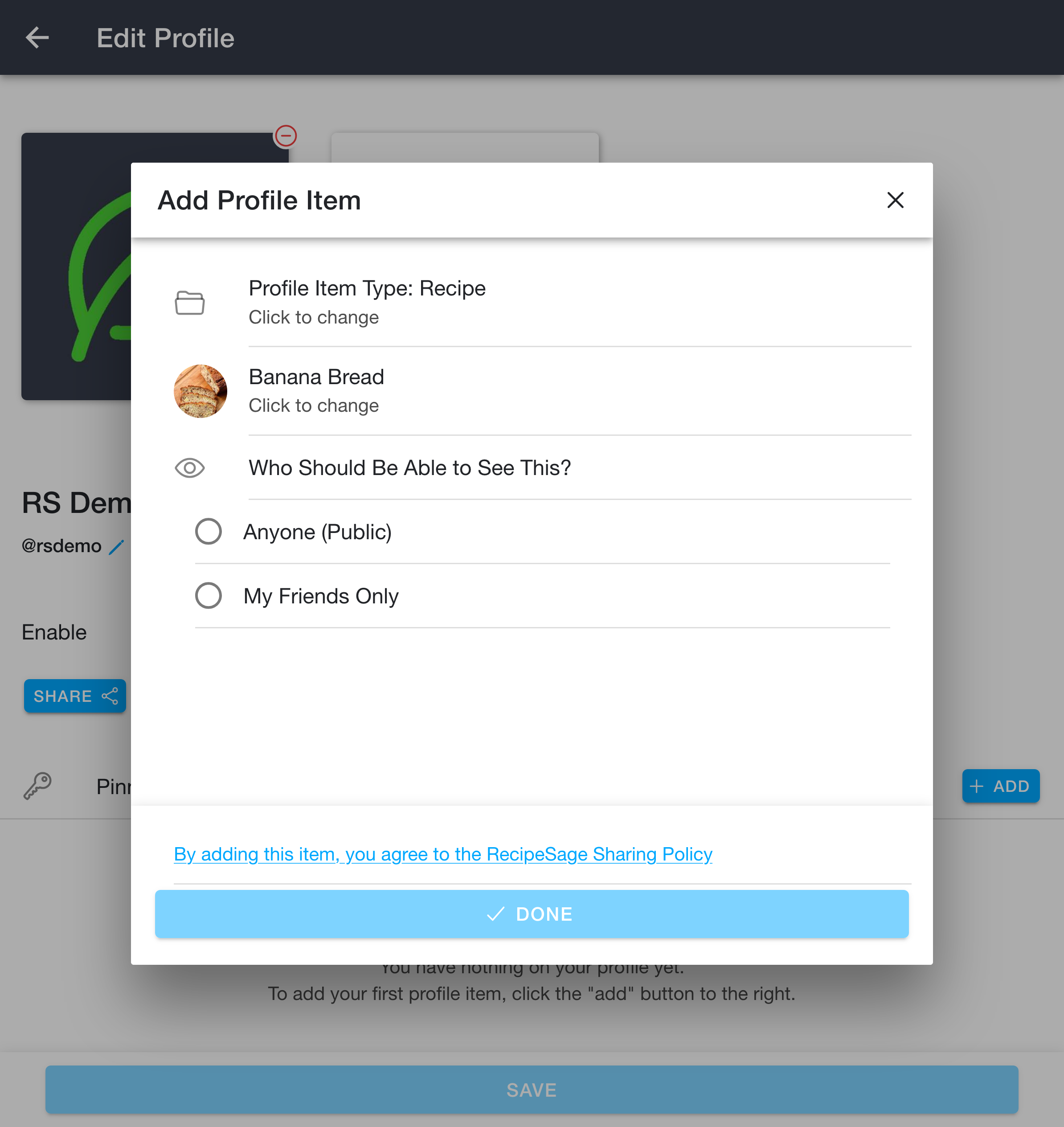
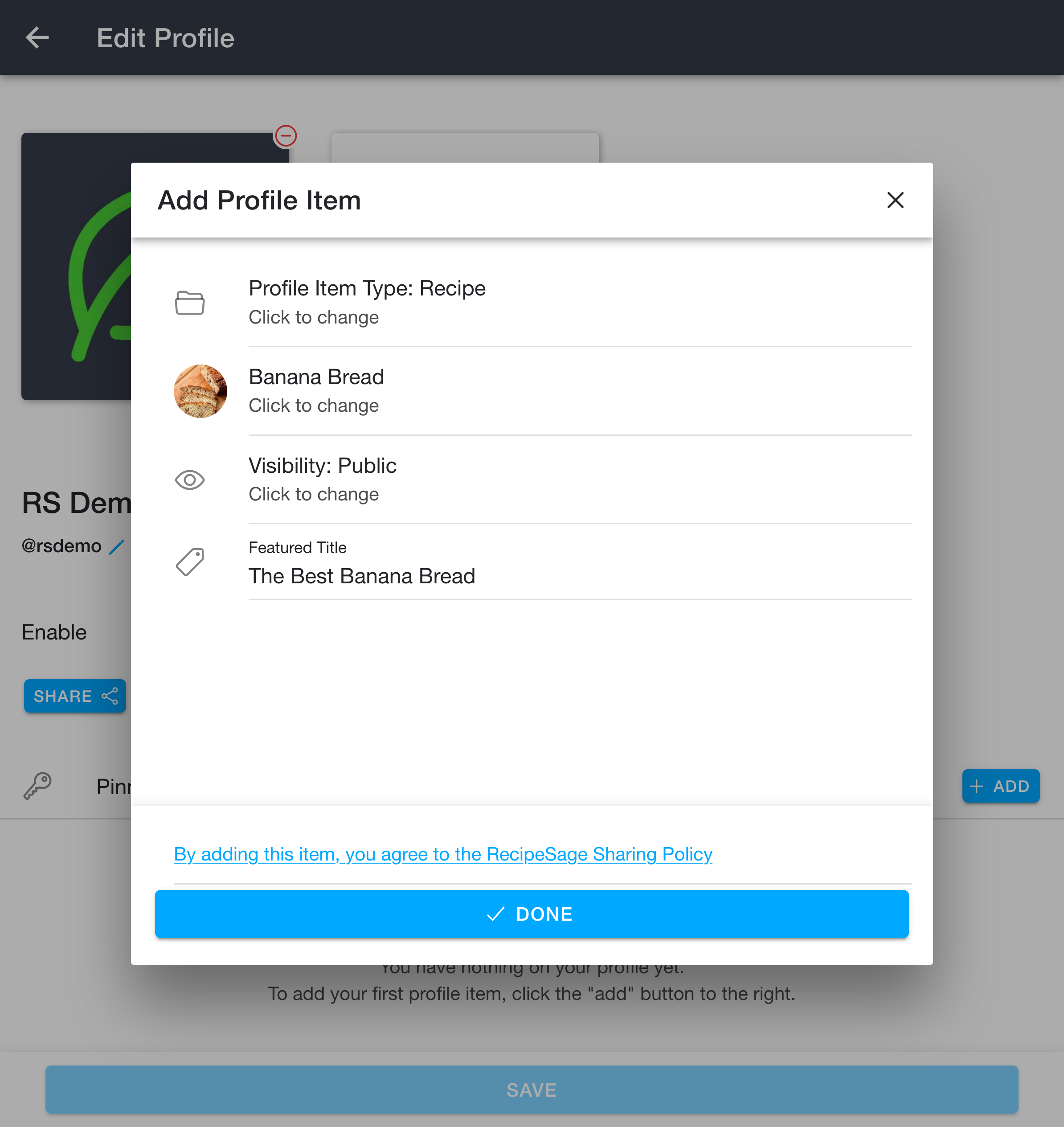
Step 4: Give it a featured title. The Featured Title is the name shown for this item on your profile. It defaults to the recipe or label name, but you can change it to anything you like. When everything looks right, click Done, then click Save on the profile page to save your changes.
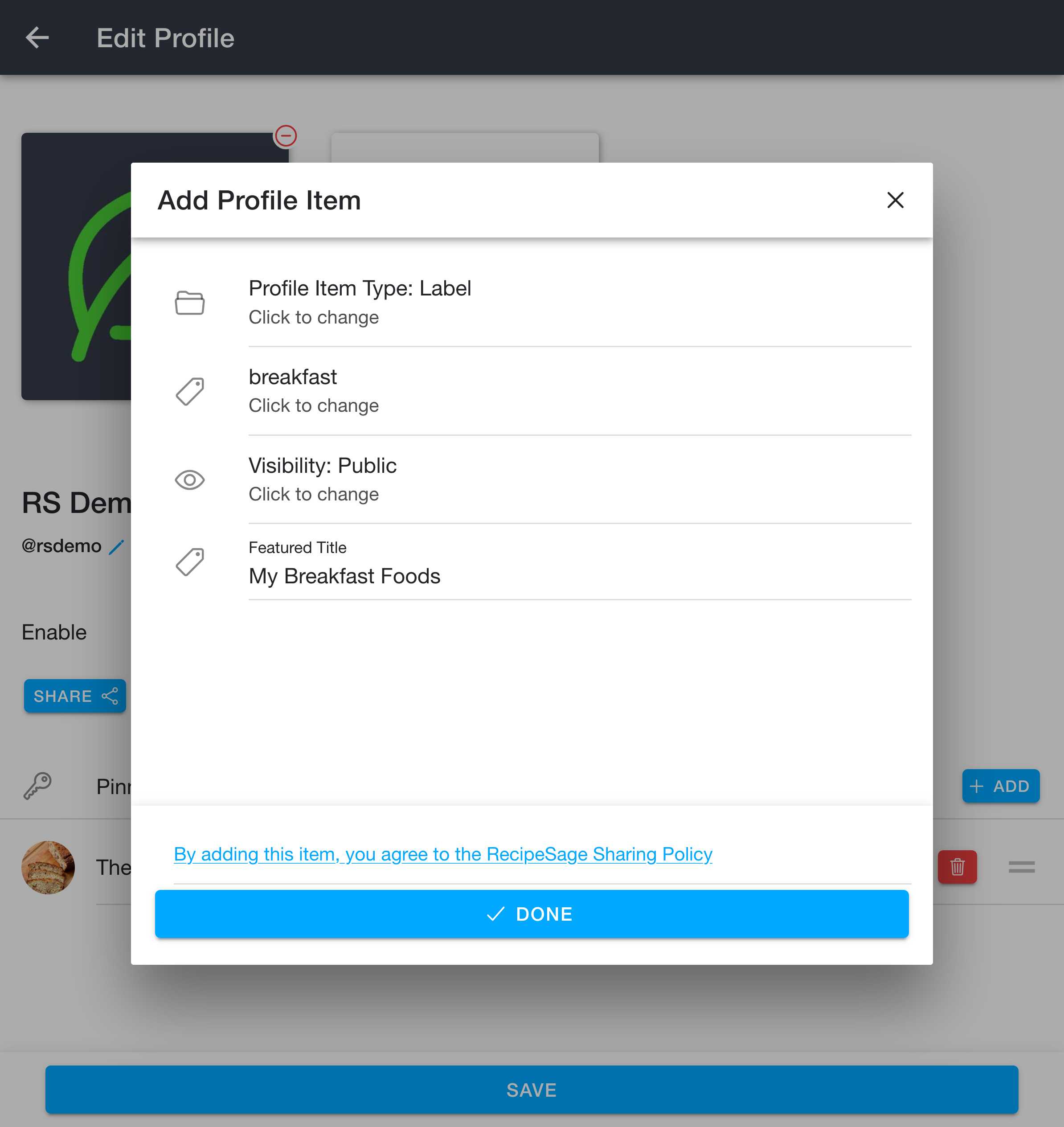
Adding a label works the same way. Choose "A Label" in step 1, pick the label, choose its visibility, and give it a featured title.
Once added, your items appear under "Pinned Recipes & Labels" on the profile page. You can reorder them by dragging the handle on the right, or remove one with the red trash can icon. Remember to click Save afterwards.
Keep in mind, if you share with the public, that means anyone will be able to view this item if they have your RecipeSage @handle. As always, only you can modify your recipes.
Sharing Your Profile
You can easily share your profile via the Share button displayed on the 📱 view/edit profile page, shown in the 📖 editing your profile section above.
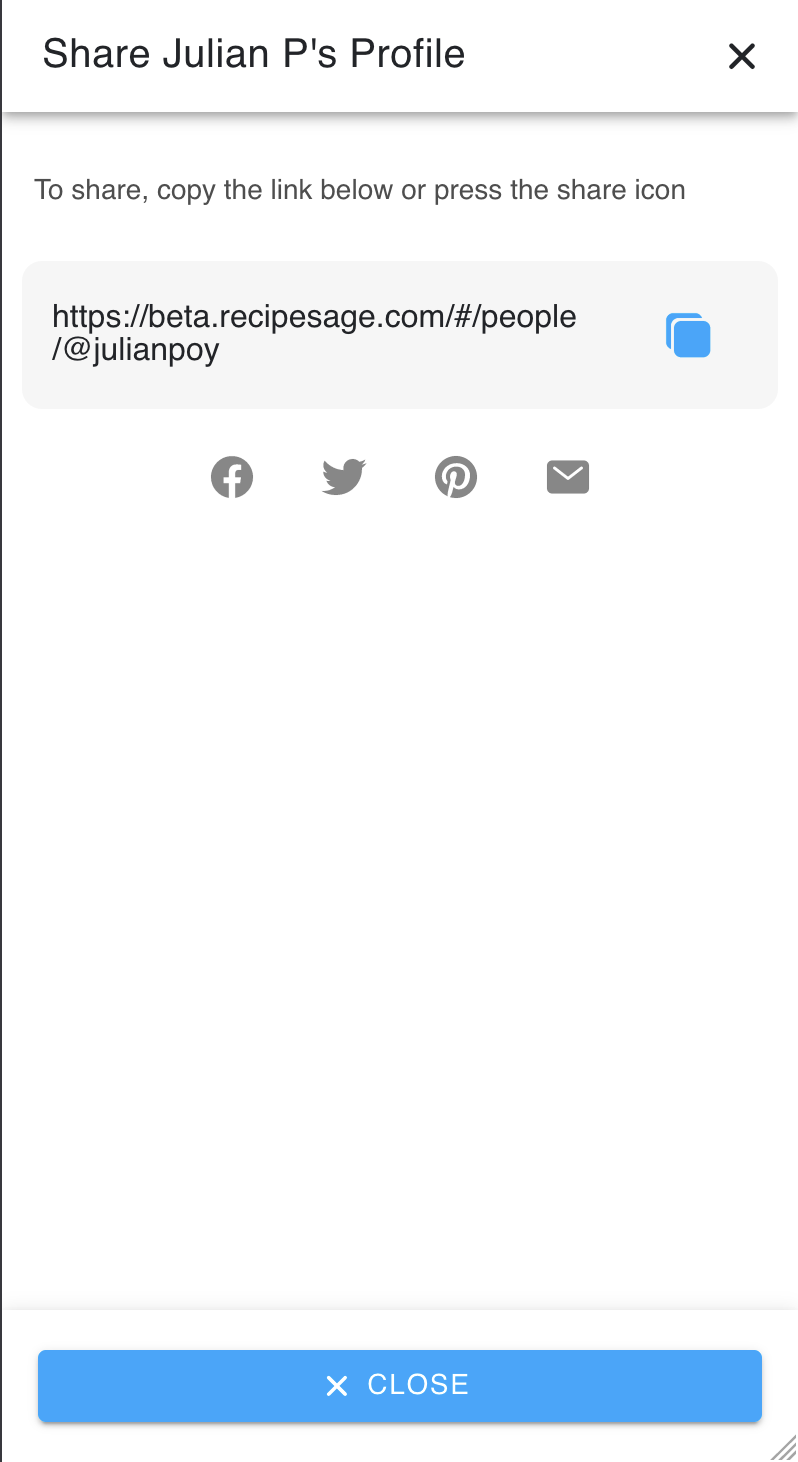
When you press the share button, a dialogue similar to the image above will appear. You can share the link displayed with anyone, whether they have a RecipeSage account or not.
Keep in mind that when you share your profile by link like this, people who open the link will only be able to view content that you've marked as publicly visible and not content that you've made visible to friends only.
Other users can use this profile link to add you as a friend, so sharing this to your friends and family is an easy way to have them add you within the platform. If they don't have a RecipeSage account, they will be able to create one via this page (though they are not required to in order to view your public profile content).
Incoming friend requests and active friendships, as well as other user's profiles are displayed on the 📖 people page.