My Recipes
Welcome to the main page of RecipeSage! This is where most of the action happens. Here you can search, sort and filter for the recipes you're looking for.
Video Guide
This same video also appears on the 📖 creating and editing and 📖 recipe details pages, since it covers recipes as a whole. Think of it as a visual overview to help you get oriented. It does not cover everything, so read on down this page for the details specific to the my recipes page.
Main Screen
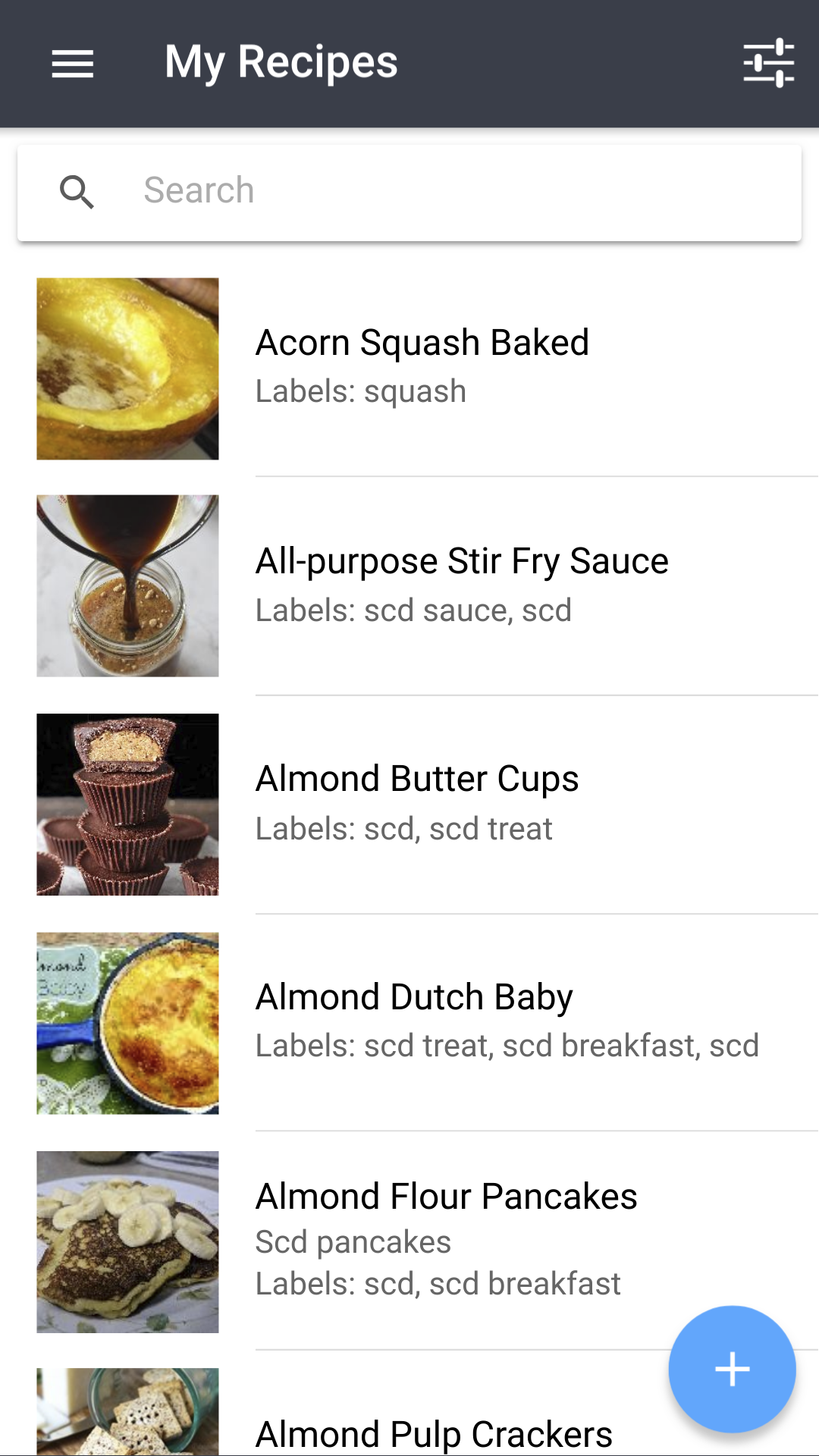
To create a recipe, you'll need to click that big blue button in the bottom right hand corner. That will take you to the recipe authoring page.
To open a recipe from the my recipes page, click that recipe. This will take you to the recipe details page for that recipe.
If you'd like to open a recipe in a new tab, you can hold the control key (Windows and Linux) or command key (Mac) as you click a recipe.
Search
You can enter any text into the search bar and RecipeSage will try to find the closest results to your search query. The search includes the recipe's title, description, ingredients, source, and notes.
The search bar returns results that are as "close" to your match as possible, but also includes misspellings and similar words. The closer the result is to your query, the higher up in the search results list it will be.
Options Menu
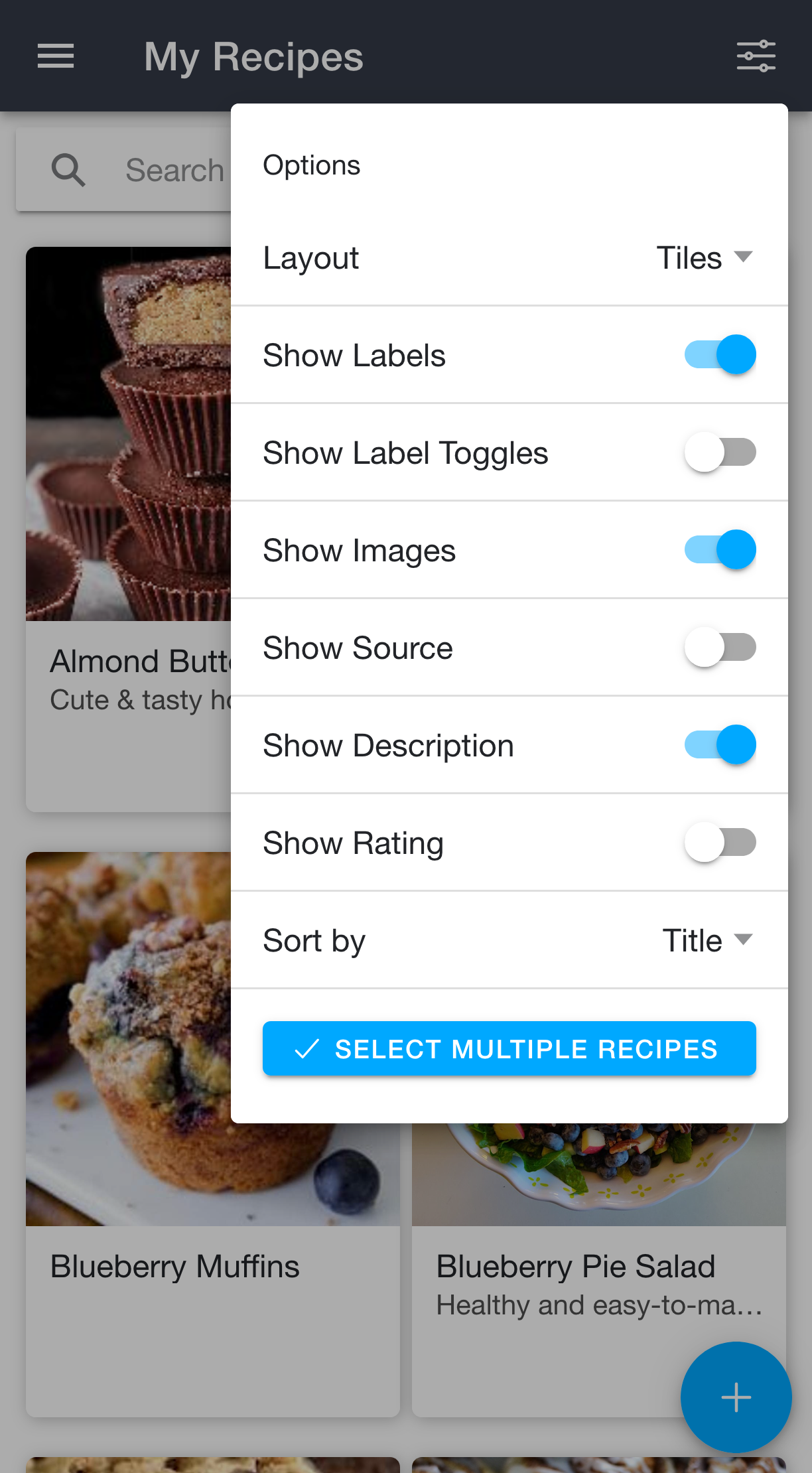
Use the options icon in the upper right-hand corner to change the layout, adjust the sort order, and enable/disable different visual items. These are all visual preferences. To actually narrow down which recipes are shown, use the 📖 Search Filters menu instead.
Here is a brief description of what each of these settings do:
Layout: Switches the recipe list between the Tiles, List, and Compact layouts.
Show Labels: When enabled, you'll see a list of labels below the title on each recipe. This setting is visual only.
Show Label Toggles: When enabled, you'll see buttons for each of your labels at the top of your recipe list. You can then select them to filter your recipes by label.
Show Images: When enabled, you'll see recipe images. This setting is visual only - useful if you're on a limited data connection.
Show Source: When enabled, you'll see the recipe source below the recipe title on each recipe. This setting is visual only.
Show Description: When enabled, you'll see the recipe description below the title on each recipe. This setting is visual only.
Show Rating: When enabled, you'll see the recipe's star rating on each recipe that has one. This setting is visual only.
Sort By: Selecting a different sort order will change the order in which recipes appear in the list. You can sort by title, when a recipe was created or updated, or when it was last made.
Search Filters
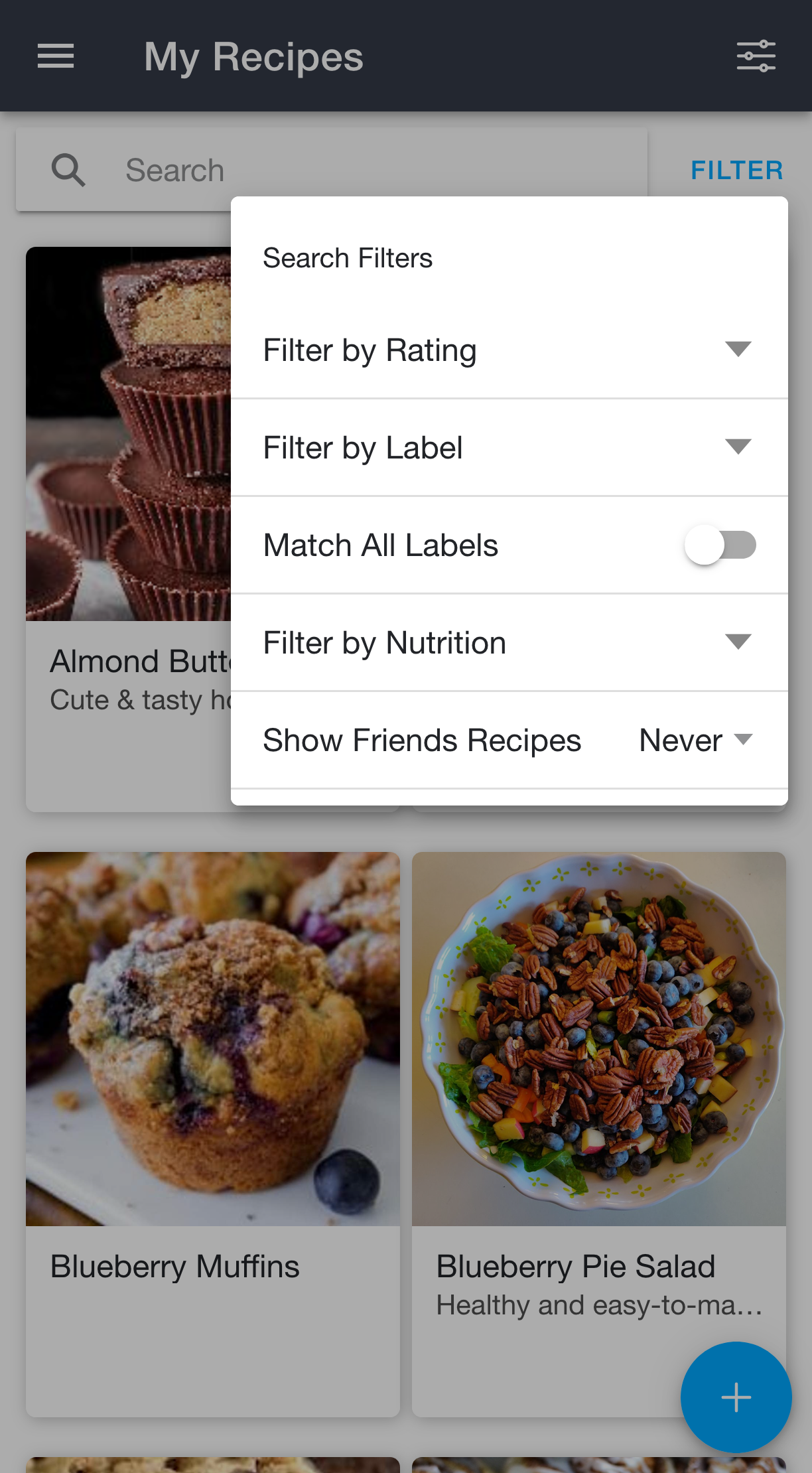
The filter and options menus are separate. While the 📖 Options menu controls how the list looks, the Search Filters menu controls which recipes are shown. Tap Filter next to the search bar to open it.
Filter by Rating: Show only recipes with the star ratings you select.
Filter by Label: Show only recipes that have the labels you select. See 📖 Label Usage & Filtering for more detail.
Match All Labels: Changes how the label filter is applied. When off, filtering by labels "dinner" and "soup" will show recipes that have either of those labels. When on, it will only show recipes that have both of those labels.
Filter by Nutrition: Show only recipes whose nutrition values fall within the ranges you set.
Show Friends Recipes: Choose whether recipes shared with you by friends are included in your search and browse results.
Bulk Actions
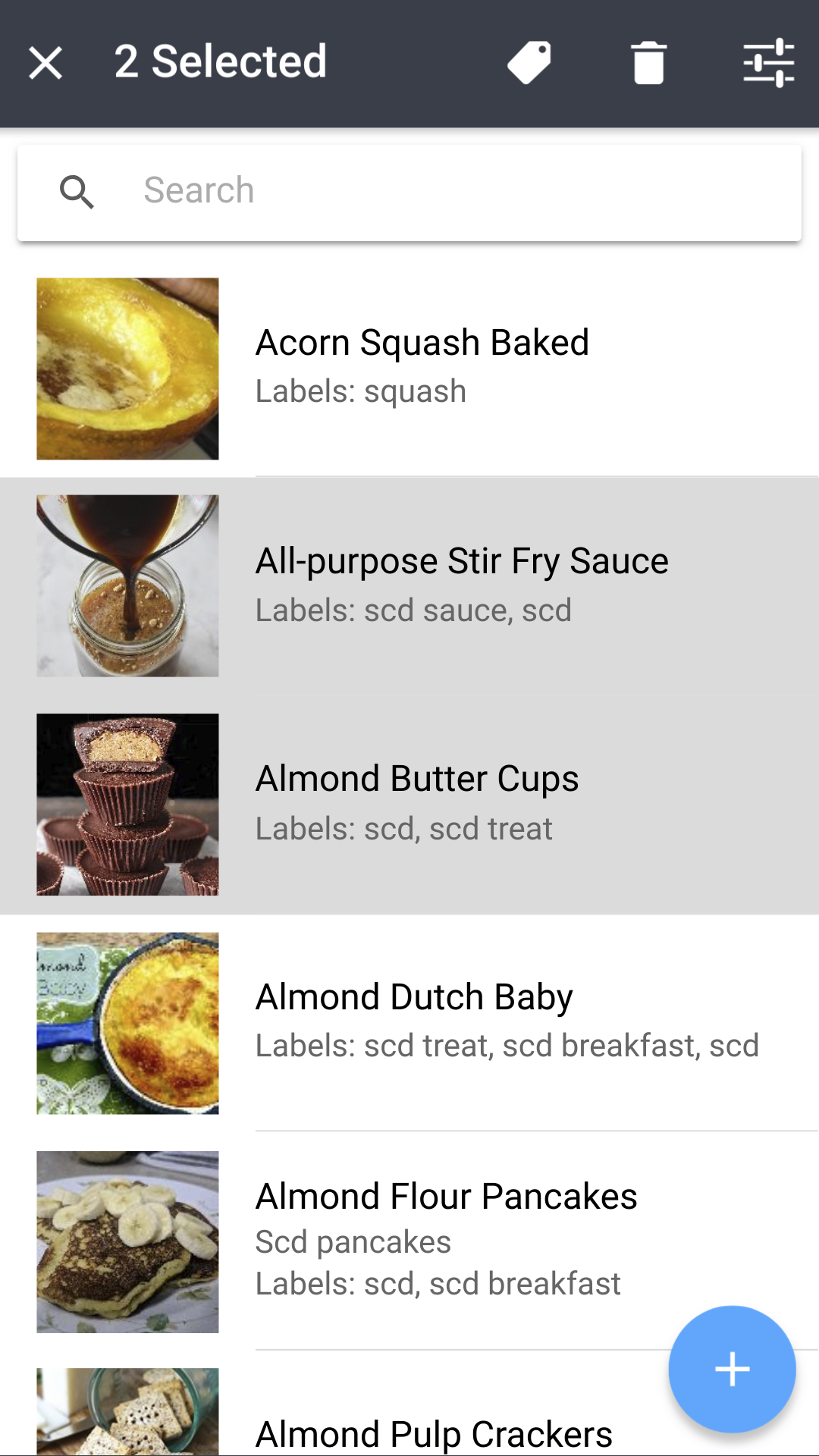
You can select multiple recipes by using the "Select Multiple Recipes" option in the options menu, then tapping the recipes you'd like to select. Then, use the buttons in the header to add a label to, export, or delete all of those recipes at the same time.
You can tap a recipe again to deselect it, or press the X in the top left corner to cancel your selection altogether.
Printing All Recipes or Exporting All Recipes to PDF
You can print all recipes or export them to PDF format for offline viewing via the settings page.
Open Side Menu -> Settings -> Export Recipe Data -> Export as PDF.
You can print the PDF provided via your browser's print dialogue, or save the PDF for later use offline.