Nutrition Calculator
The Nutrition Calculator adds up the nutrition information across several of your recipes. You choose how many servings of each recipe to include, and it shows the combined totals (or the average per serving). You can reach it from Side Menu -> Tools -> Nutrition Calculator.
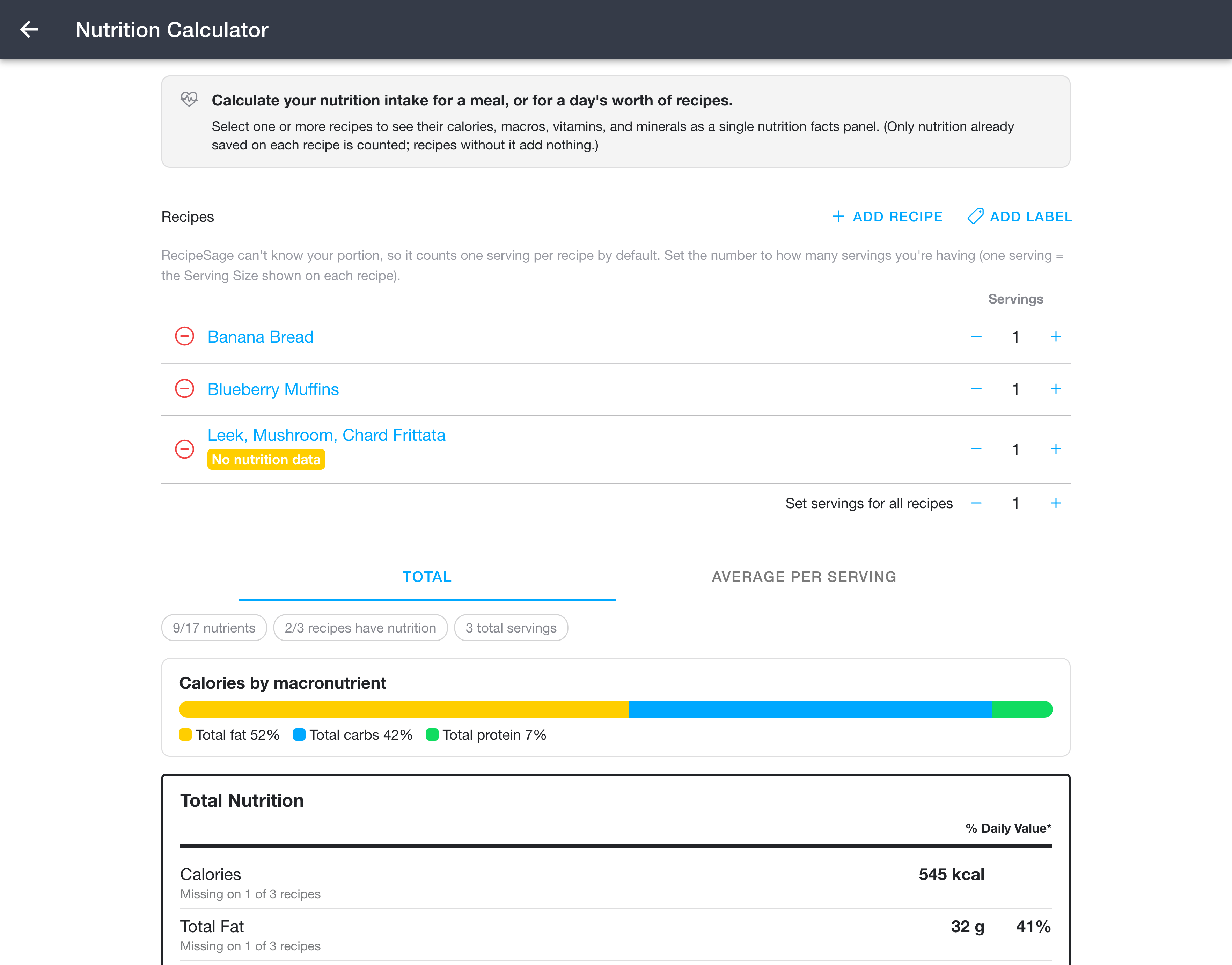
Building a Calculation
- Open
Side Menu -> Tools -> Nutrition Calculator. - Under Recipes, build the list of recipes to add up:
- Add Recipe opens a picker that lets you choose individual recipes one at a time.
- Add Label opens a label picker to add every recipe within that label. You can use this multiple times with different labels.
- Recipes you have already added are skipped, so adding the same recipe (or a recipe matching more than one label) does not create duplicates.
- For each recipe, set how many servings you are including using the minus and plus buttons, or by typing directly (the default is one serving each, and fractional amounts such as
0.5or1.5are allowed). The recipe's stored per-serving nutrition is multiplied by this number before it is added to the totals.- The line beneath each recipe title shows that recipe's own serving description (for example, "1 bowl (250g)") when available.
- A recipe with no saved nutrition shows a No nutrition data badge, so you can see at a glance which recipes contribute nothing.
- To set the same servings count on every recipe at once, type a number into Set servings for all recipes; it applies immediately.
- Remove a recipe with the red minus button on the left.
The totals update automatically as you add recipes or change servings; there is no button to press.
Reading the Results
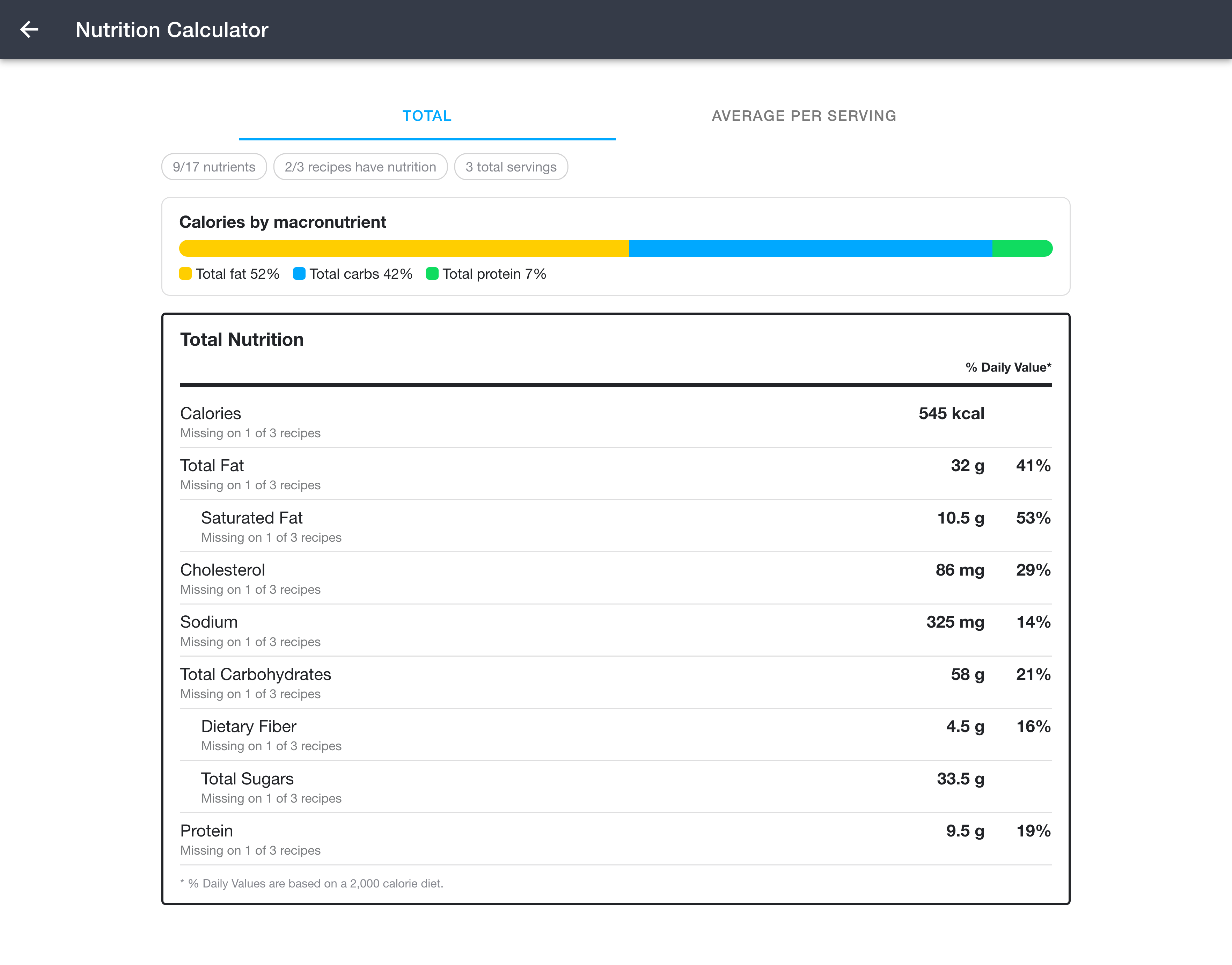
- Total / Average per serving - switch between the combined total for everything you selected and the average per serving. In the average view, a Divide among field controls what the total is divided by. It defaults to the combined number of servings you selected, but you can change it to any number, for example to split a batch of meal prep into a set number of containers or to share a spread of dishes between a group of people.
- Coverage chips - a quick summary of how complete the data is: how many of the 17 trackable nutrients appear, how many of your selected recipes have any nutrition data, and the combined servings count.
- Calories by macronutrient - a bar showing the share of calories coming from fat, carbohydrates, and protein (using 9 calories per gram of fat and 4 per gram of carbohydrates and protein).
- Nutrition table - the summed value for each nutrient, along with its % Daily Value where the FDA defines one. Percent Daily Values are based on a 2,000 calorie diet, so in the Total view they can exceed 100% (for example, a large batch could add up to more than a day's worth of sodium).
Launching From a Meal Plan
You can also send a meal plan's recipes straight into the calculator. In a meal plan, select one or more days, open the options menu (the icon in the top right), and choose Calculate nutrition for selected day(s). The calculator opens preloaded with the recipes scheduled on those days. A recipe that appears on more than one selected day is counted as that many servings.
If any selected day contains a manual meal entry (a typed item that is not a recipe), the meal plan warns you first, since those items have no nutrition and will be skipped.
Handling Missing Data
Recipes do not all have the same nutrition fields filled in, so the calculator follows two rules:
- A nutrient that is missing on every selected recipe is left out of the results entirely.
- A nutrient that is present on at least one recipe but missing on others is still shown, summed across only the recipes that have it, with a note such as "Missing on 2 of 3 recipes" so you know the total is partial.
Notes
- Nutrition is stored per serving, using each recipe's own definition of a serving. The calculator multiplies by the servings you choose, but it cannot reconcile recipes whose servings are defined differently (for example one recipe's "serving" being a much larger portion than another's). The per-serving description shown under each recipe helps you judge this.
- The calculator only reads existing nutrition data; it does not estimate or generate nutrition for recipes that have none. You can add nutrition to a recipe from its edit page.